
Chiropractic snapshot setup guide
Install, brand and launch the snapshot in about an hour. Follow the steps in order.
Setup checklist
Load the snapshot
Open the snapshot share link while logged in to your agency account to import it. Then go to Account Snapshots > Imported Snapshots, click the actions menu on the Chiropractic snapshot and choose Push to Sub-Account, or select it when creating a new sub-account under Sub-Accounts > Create Sub-Account.
Complete the business profile
Inside the clinic's sub-account, go to Settings > Business Profile. Add the clinic name, address, phone, website, logo and correct time zone so reminders send at the right local time.
Fill in custom values
Go to Settings > Custom Values and update business name, owner name (usually the lead doctor), phone, service area and every offer. Confirm the new-patient exam price and returning-patient offer with the clinic before going live.
Turn on HIPAA settings if needed
If the clinic will store any protected health information, enable GoHighLevel's HIPAA option for the sub-account and have the clinic sign the BAA. Keep the custom fields focused on scheduling and status, not symptoms or diagnoses.
Connect the phone number and register A2P
Go to Settings > Phone Numbers to buy or port a number, then complete A2P 10DLC registration in the Trust Center. Use a 'healthcare appointment reminders and patient communication' use case with the sample messages from this snapshot.
Set up email sending
Go to Settings > Email Services and add a dedicated sending domain such as mail.clinicname.com. Verify the DNS records so confirmations and reminders land in the inbox.
Configure the New Patient Exam calendar
Go to Calendars > Calendar Settings, edit New Patient Exam, assign the doctors, and set availability, duration and buffers to match the clinic's new-patient blocks. Copy the calendar's booking link into the booking_link custom value.
Customize and embed the forms
Go to Sites > Forms > Builder. Review the New Patient Request form, confirm the service list and insurance options, and embed it on the clinic website and Facebook lead ads landing page.
Review the pipelines
Go to Opportunities > Pipelines and confirm the stages: New Patient Exam Booked, Exam Completed and Care Plan Presented in the Sales Pipeline, plus the patient journey and reactivation pipelines. Show the front desk how to drag a card to Won when a patient starts care.
Connect Google reviews
Go to Settings > Integrations and connect the clinic's Google Business Profile, then confirm the review link under Reputation > Settings and paste it into the review_link custom value.
Assign alerts and publish workflows
Go to Automation > Workflows. Open each workflow, set team alerts to the front desk manager's phone and email, confirm the From name, and publish. Decide how the front desk will add the 'niche campaign' tag for missed visits and the 'service due' tag for wellness reminders.
Go live test
Submit the form as a test contact, call the clinic number and let it ring out, then book a test exam. Confirm in Conversations that every text and email arrived, check the alert reached the front desk, and delete the test contact.
Custom values: fill these once
All 21 workflows pull from these values, so your client's name, links and offers show up everywhere. Pre-filled chiropractic defaults are shown; replace the business details.
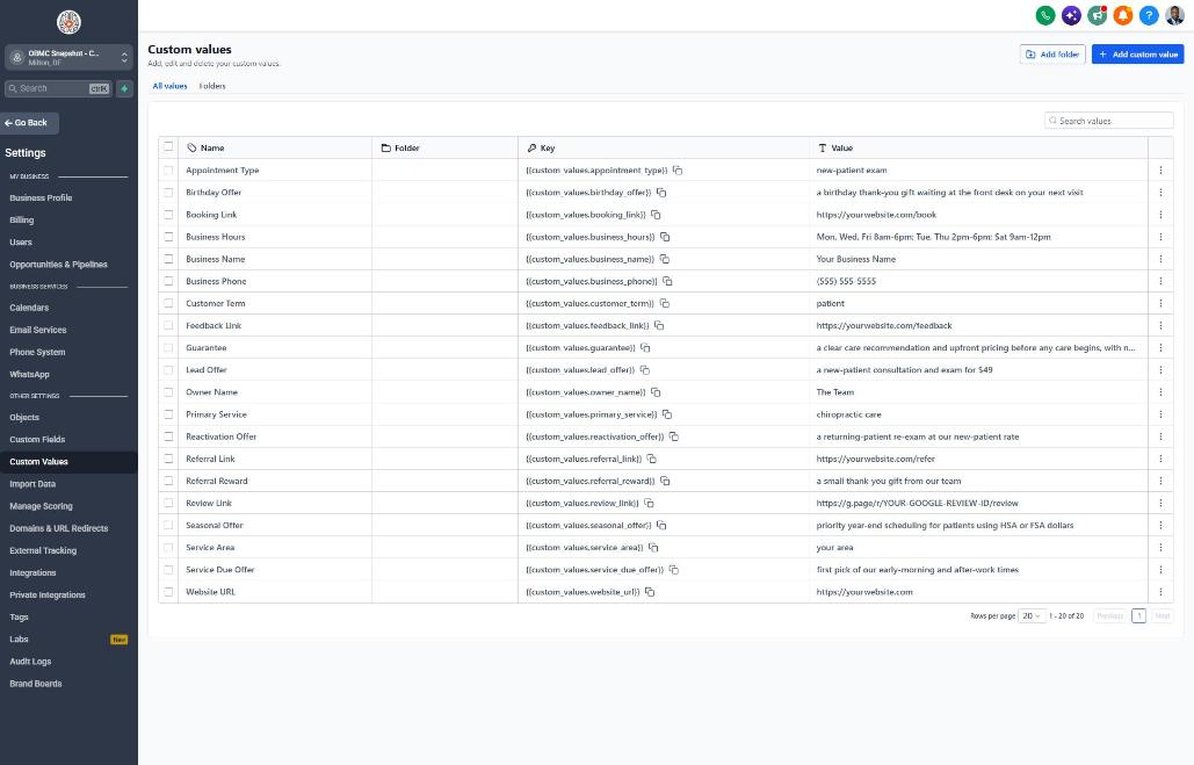
| Custom value | Chiropractic default |
|---|---|
| Business Name | Your value |
| Business Phone | Your value |
| Owner Name | Your value |
| Website URL | Your value |
| Booking Link | Your value |
| Review Link | Your value |
| Feedback Link | Your value |
| Referral Link | Your value |
| Service Area | Your value |
| Customer Term | patient |
| Appointment Type | new-patient exam |
| Primary Service | chiropractic care |
| Lead Offer | a new-patient consultation and exam for $49 |
| Guarantee | a clear care recommendation and upfront pricing before any care begins, with no pressure to commit |
| Referral Reward | a small thank-you gift from our team |
| Reactivation Offer | a returning-patient re-exam at our new-patient rate |
| Seasonal Offer | priority year-end scheduling for patients using HSA or FSA dollars |
| Service Due Offer | first pick of our early-morning and after-work times |
| Birthday Offer | a birthday thank-you gift waiting at the front desk on your next visit |
| Business Hours | Mon, Wed, Fri 8am-6pm; Tue, Thu 2pm-6pm; Sat 9am-12pm |
KPIs to track every week
| Metric | Goal | Where in GoHighLevel |
|---|---|---|
| Speed to lead | First reply to every new lead within 5 minutes during office hours | Conversations and the Sales Pipeline opportunity timeline |
| New-patient exams booked | Grow booked exams month over month from the same lead volume | Opportunities > Pipelines, New Patient Exam Booked stage |
| Exam show rate | Aim for 80% or more of booked new-patient exams showing up | Calendars > Appointments and Reporting > Appointment Report |
| Care plan acceptance | Track the share of completed exams that move to Won and improve it each quarter | Opportunities > Pipelines, Care Plan Presented vs Won |
| Missed-visit recovery | Rebook the majority of patients who enter workflow 21 | Automation > Workflows > 21 > Execution Logs and Reactivation pipeline |
| New Google reviews | Earn several new 5-star reviews every month | Reputation > Overview |
Campaign ideas for your client
- New-patient consultation and exam at a set introductory price (with any disclosures your state requires)
- Year-end HSA/FSA scheduling push with itemized receipts
- Returning-patient re-exam at the new-patient rate for anyone inactive 6+ months
- Family or couples new-patient day where a spouse or family member books alongside the patient
- Workplace or community workshop on posture and ergonomics that feeds the new-patient calendar
Compliance notes
- HIPAA: never ask for or send symptoms, diagnoses or treatment details by SMS or email. If the clinic stores PHI in GoHighLevel, enable the HIPAA option, sign the BAA, and limit access to staff who need it.
- TCPA and A2P 10DLC: only text people who gave consent (form opt-in checkbox or texted the clinic first), keep 'Reply STOP to opt out' on first messages, and register the brand and campaign before sending.
- No outcome claims: don't promise pain relief, cures or results in any message or ad. Describe the visit and the process, not the outcome.
- Discounted or free exam offers: many states require specific disclosure language for reduced-fee or free services, and offers to Medicare or Medicaid patients can raise anti-inducement issues. Have the clinic confirm offer wording with its compliance advisor.
- Reviews and referrals: never offer anything in exchange for a review, keep referral thank-you gifts of nominal value, and don't reply to reviews in a way that confirms someone is a patient.
This is general guidance, not legal advice. Confirm the rules for your client's state and industry.