
🔧 GoHighLevel snapshot · Auto Repair & Detailing
Auto snapshot mini-course
Six short visual lessons. Follow along in your own GoHighLevel account and you’ll be live by lesson 6.
Lesson 1
Install the Snapshot and Brand It for Your Shop
Lesson 2Never Miss Another Call at the Service Counter
Lesson 3Book Appointments and Recover No-Shows
Lesson 4Follow Up on Every Repair Estimate
Lesson 5Reviews, Referrals and Bringing Customers Back
Lesson 6Launch the Declined Work and Service-Due Engine
Lesson 1 of 6
Install the Snapshot and Brand It for Your Shop
Load the snapshot and make every message sound like the shop.
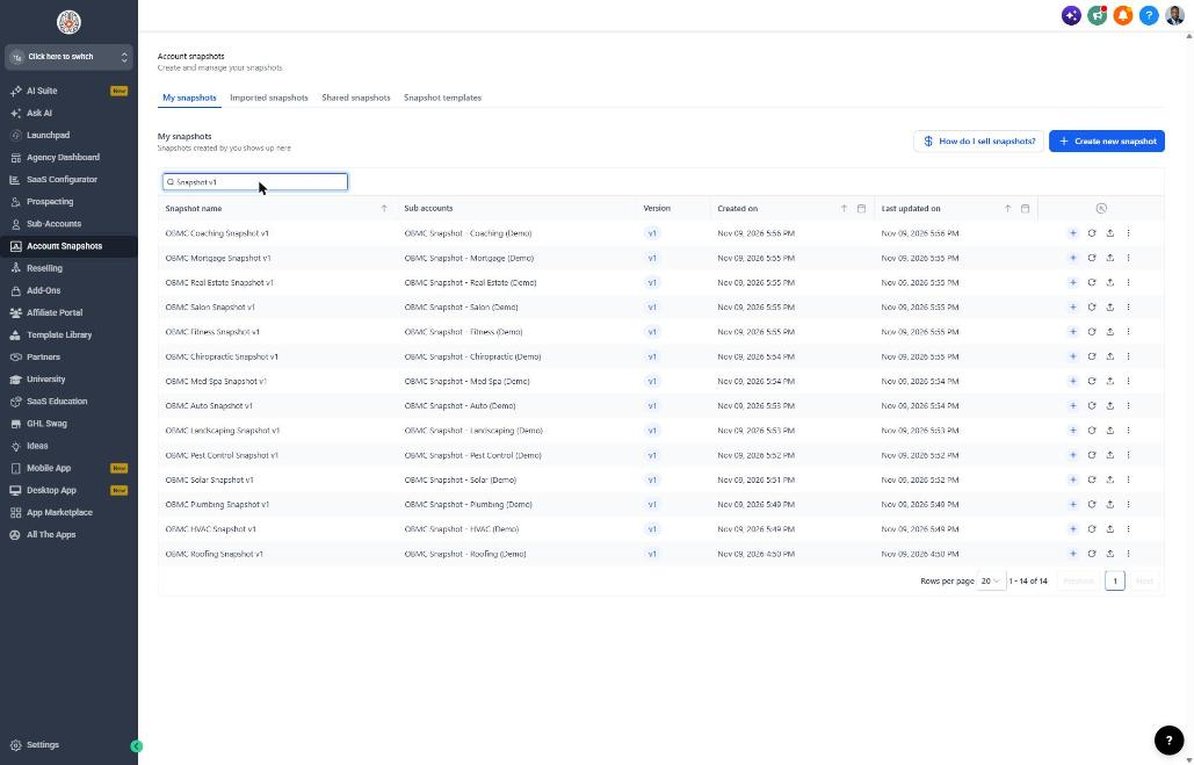
- Load the snapshot from Agency view > Account Snapshots > Imported Snapshots
- Fill in Settings > Business Profile and confirm the time zone
- Complete every value in Settings > Custom Values
- Set the shop's real offers for Service Due Offer and Reactivation Offer
- Review the 7 auto fields in Settings > Custom Fields
Lesson 2 of 6
Never Miss Another Call at the Service Counter
Make sure every call and form fill gets an immediate reply.
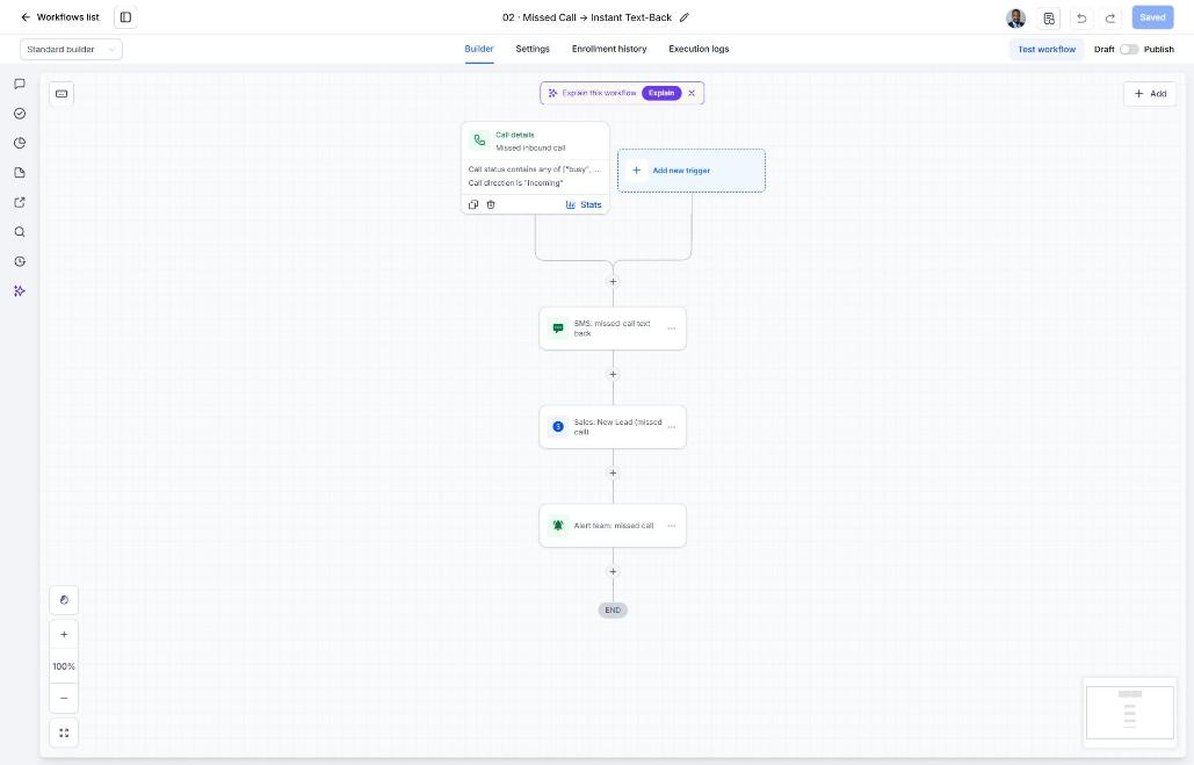
- Open Workflow 02 in Automation > Workflows and confirm the missed-call text-back is published
- Open Sites > Forms > Builder and check the vehicle and mileage questions
- Embed the service form on the website
- Review the speed-to-lead copy in Workflow 01
- Test by calling the shop line from your own phone
Lesson 3 of 6
Book Appointments and Recover No-Shows
Fill the calendar without overbooking bays, and rebook missed appointments.
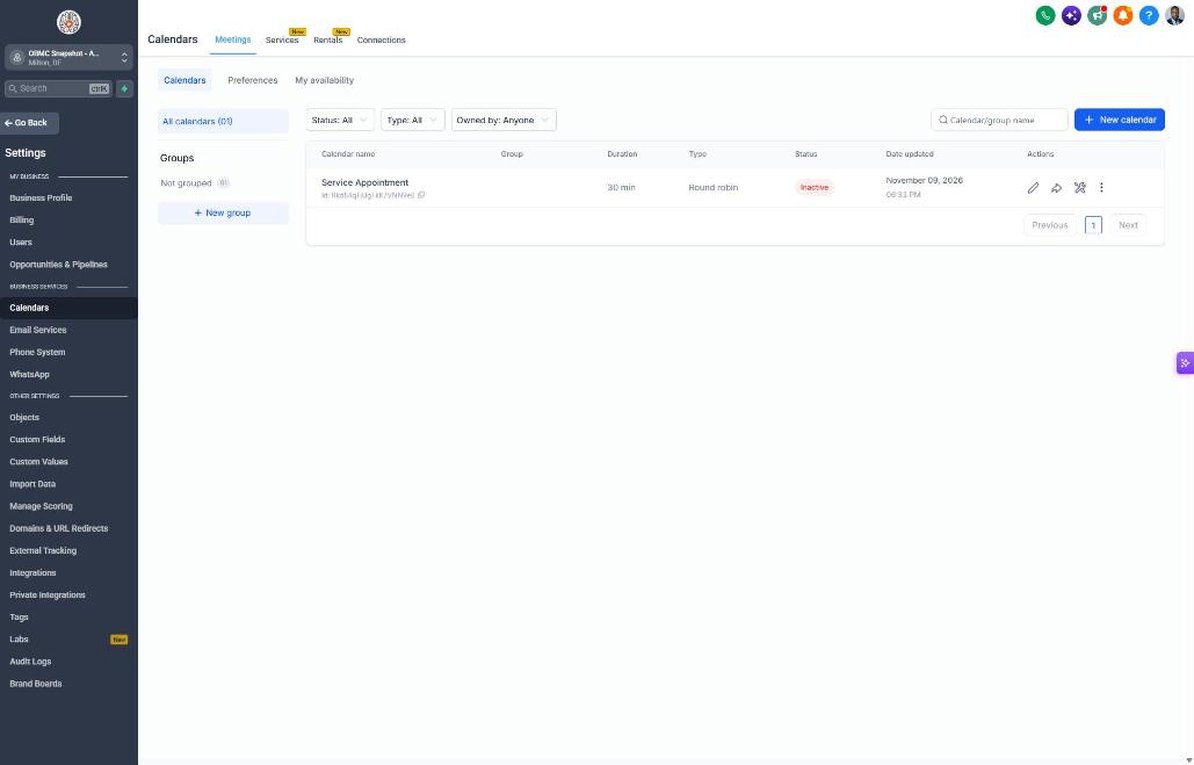
- Open Calendars > Calendar Settings > Service Appointment
- Set slot length, availability and appointments per slot to match bay capacity
- Copy the booking link into Settings > Custom Values
- Review the reminders in Automation > Workflows > 04
- Review the no-show recovery texts in Workflow 05
Lesson 4 of 6
Follow Up on Every Repair Estimate
Move every estimate through the pipeline until it's approved or closed.
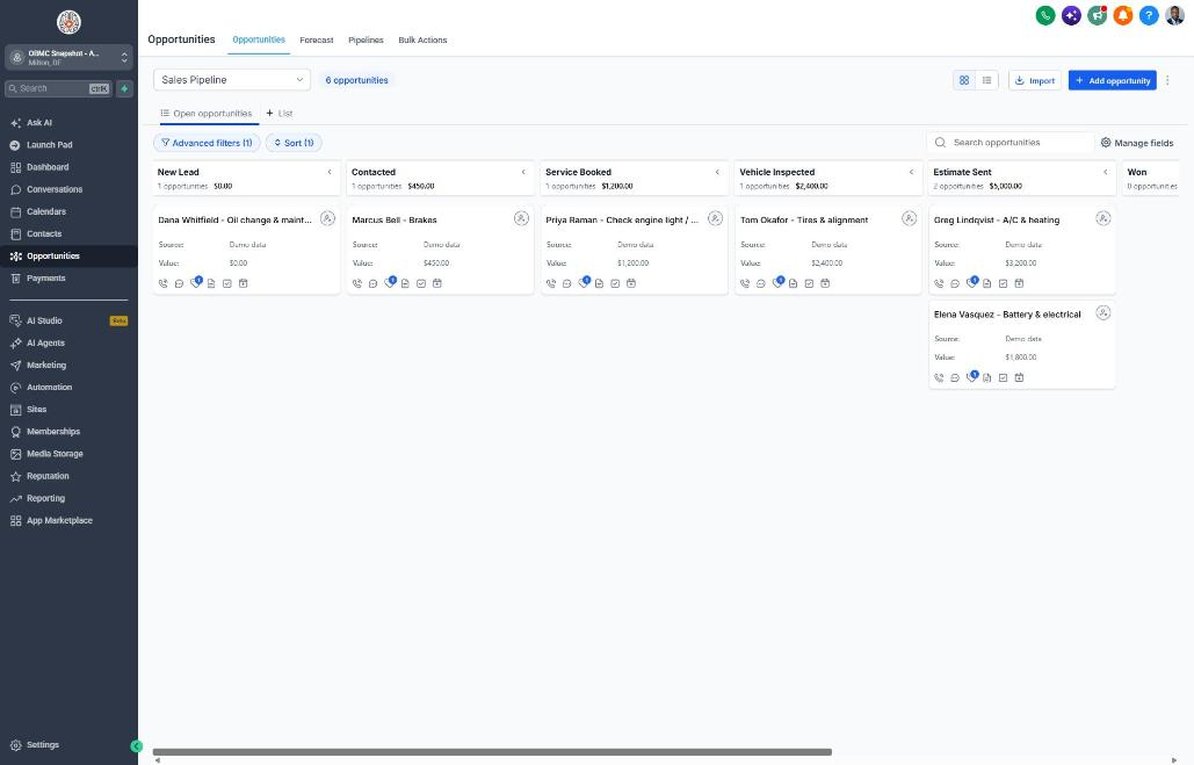
- Open Opportunities > Pipelines and walk through the Service Booked to Won stages
- Enter estimate totals as opportunity values
- Move a test deal to Estimate Sent to start Workflow 07
- Route the Workflow 18 stale deal alert to the service writer
- Record declined items in the Declined Work field when a deal is lost
Lesson 5 of 6
Reviews, Referrals and Bringing Customers Back
Get more Google reviews and bring lapsed customers back to the shop.
- Connect Google Business Profile in Settings > Integrations
- Copy the review link into Settings > Custom Values
- Review the feedback split in Automation > Workflows > 11
- Import lapsed customers in Contacts > Import
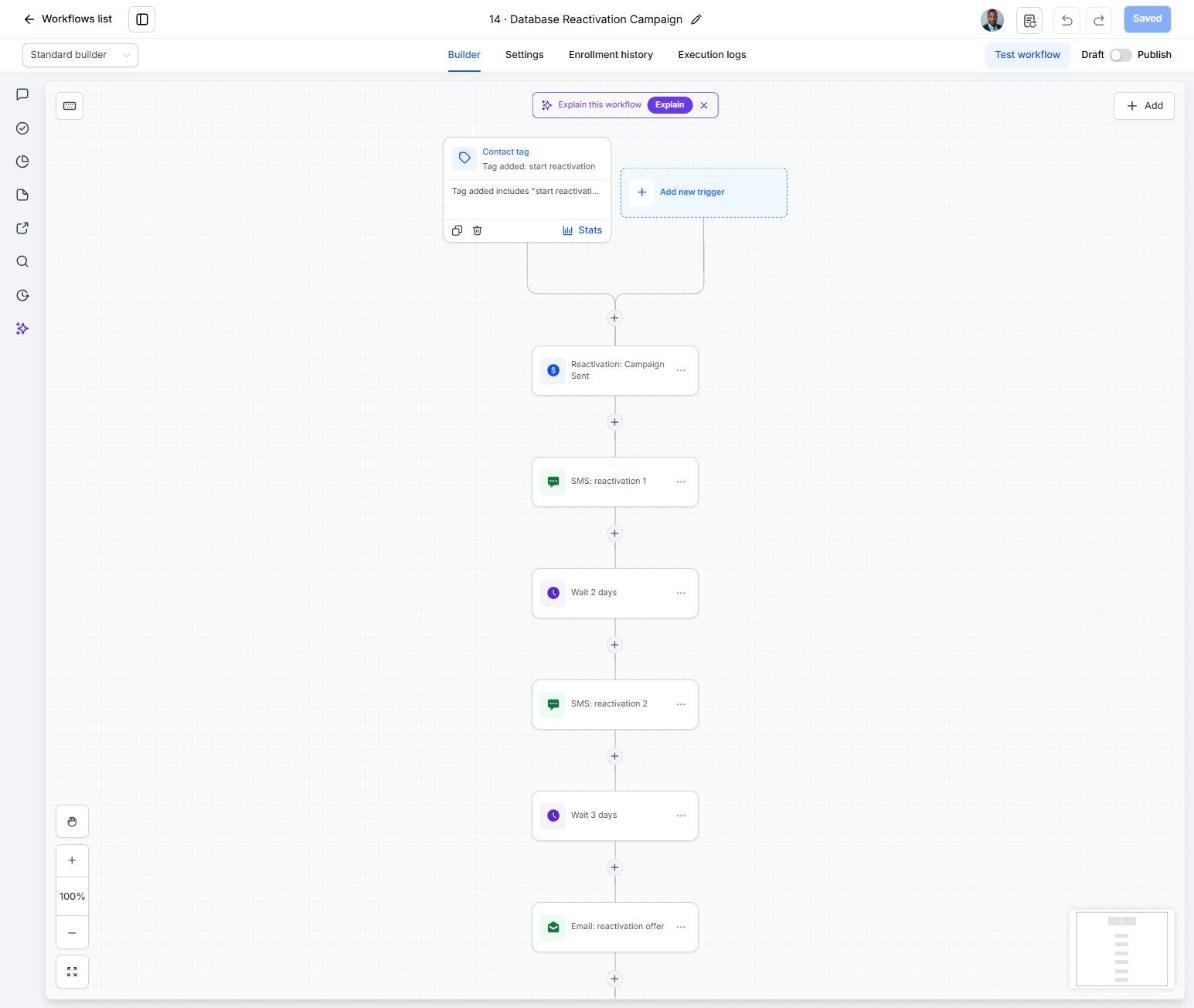
- Tag a test group 'start reactivation' to launch Workflow 14
Lesson 6 of 6
Launch the Declined Work and Service-Due Engine
Turn declined estimates and due maintenance into booked bays every month.
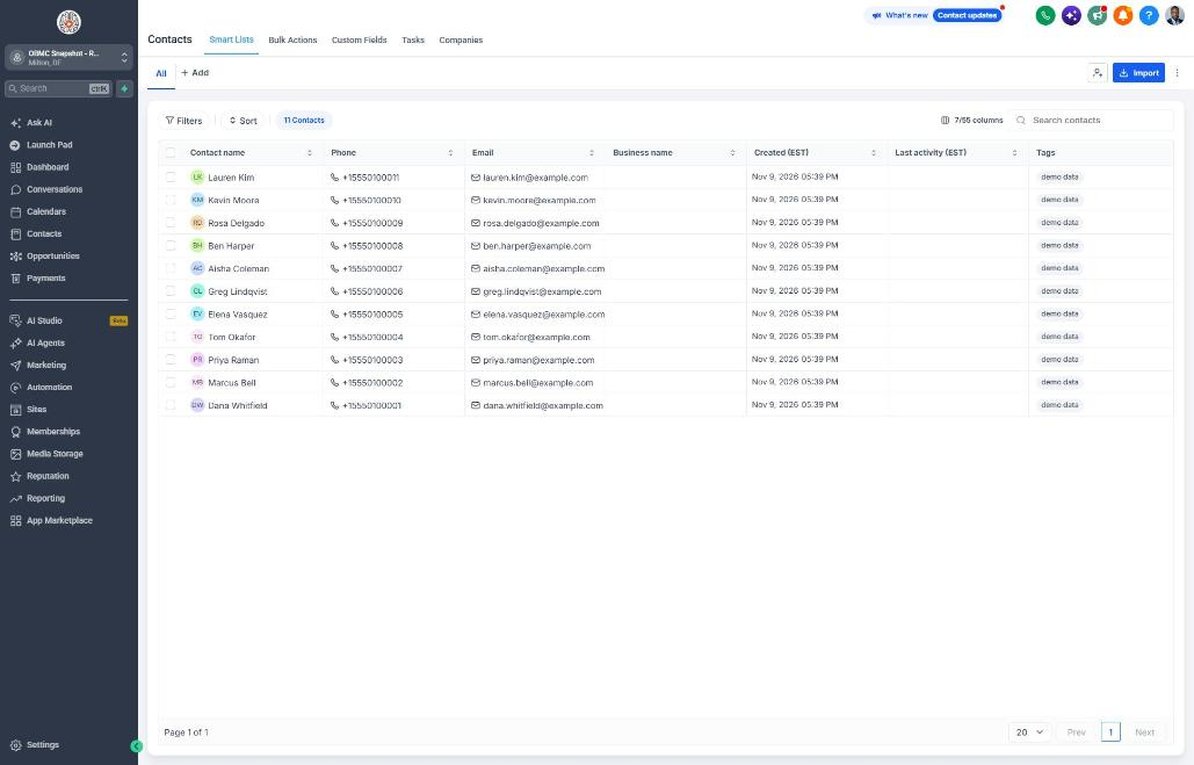
- Export declined work from your shop system and import it into Contacts with the Declined Work fields
- Filter Contacts by Declined Work Estimate and tag them 'niche campaign' to start Workflow 21
- Set Next Service Due and Next Service Mileage after each visit
- Tag due customers 'service due' each week to run Workflow 19
- Review recovered work and rebook rates on the Dashboard monthly
Launch your next auto client this week
One-time $397. Includes the snapshot, both PDFs, the walkthrough and the mini-course. Or get all 20 niches for $1,997.