
🧾 GoHighLevel snapshot · Tax & Accounting Firms
Tax & Accounting snapshot mini-course
Six short visual lessons. Follow along in your own GoHighLevel account and you’ll be live by lesson 6.
Lesson 1
Install the Snapshot and Brand It for the Firm
Lesson 2Capture Inquiries and Respond During the Rush
Lesson 3Book Consultations and Recover No-Shows
Lesson 4Track Engagement Letters Through Filing
Lesson 5Reviews, Referrals, and Rebooking Last Year's Clients
Lesson 6Launch Document Collection and Year-Round Advisory
Lesson 1 of 6
Install the Snapshot and Brand It for the Firm
Load the snapshot and make every message clearly come from your firm.
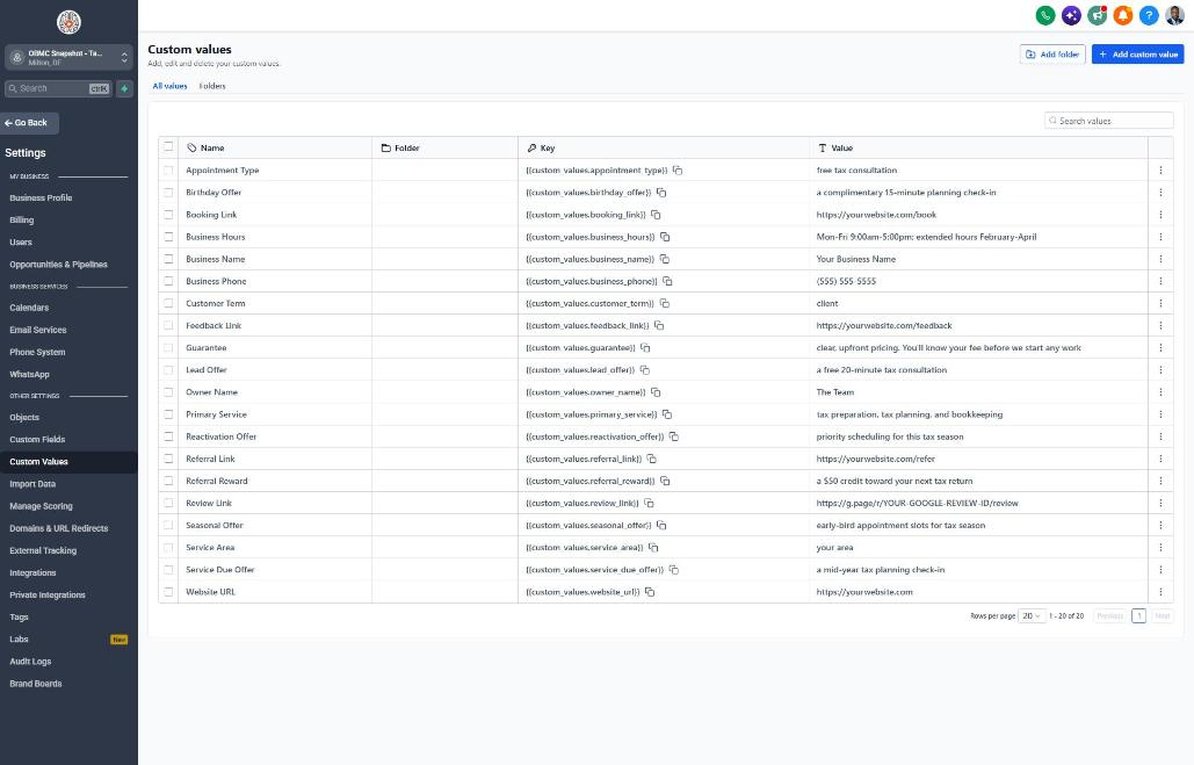
- Go to Agency view > Account Snapshots and load the OBMC Tax & Accounting snapshot
- Open Settings > Business Profile and set the firm name, address, phone, and time zone
- Go to Settings > Custom Values and fill in business name, owner name, phone, and all links
- Update Business Hours to show your tax season schedule
- Upload the firm logo so emails are easy to recognize and harder to confuse with scams
Lesson 2 of 6
Capture Inquiries and Respond During the Rush
Make sure no tax season call or form goes unanswered.
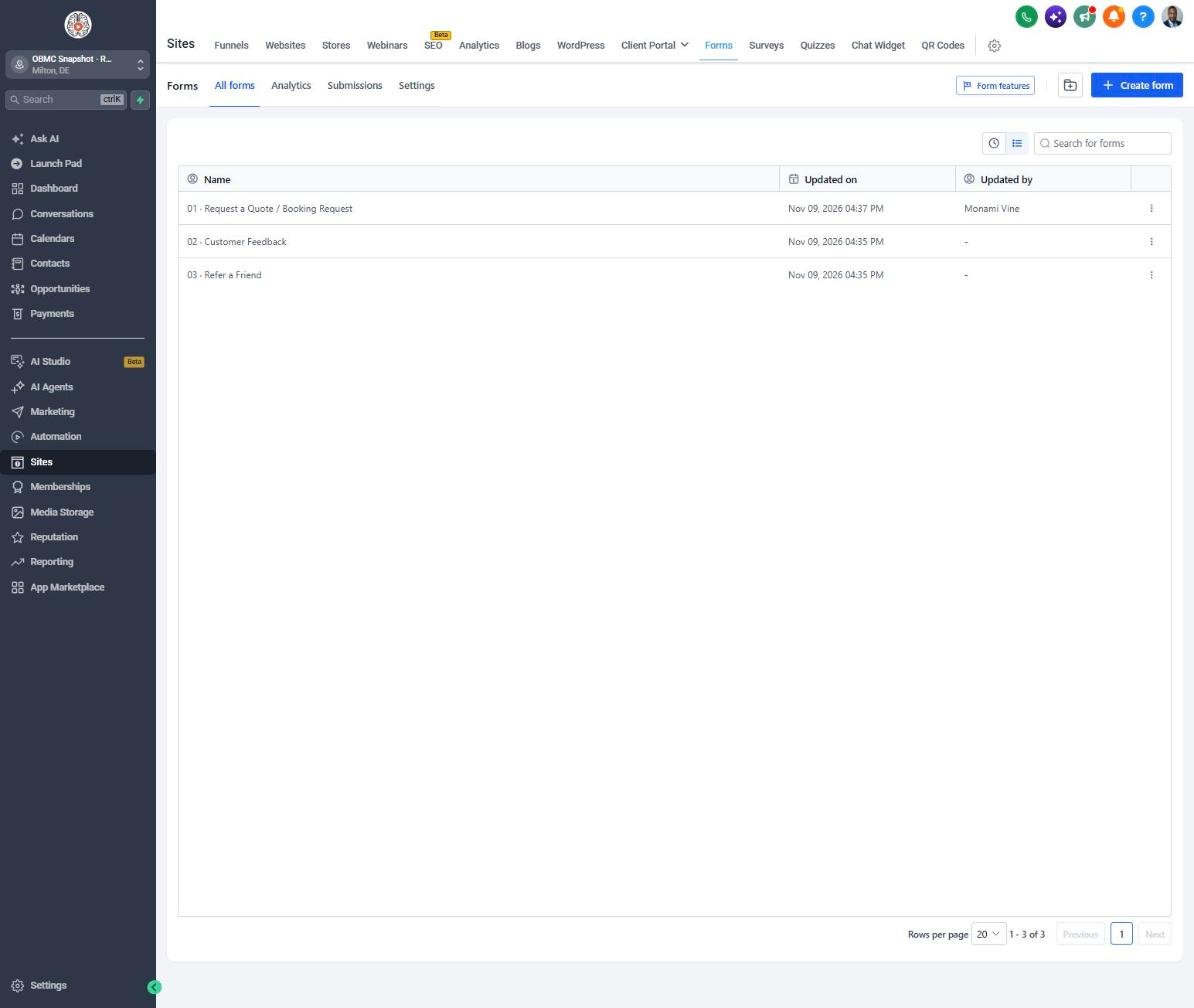
- Open Sites > Forms > Builder and confirm Client Type, Tax Year(s) Needed, and IRS Notice fields on the consultation form
- Embed the form on the website and Google Business Profile booking link
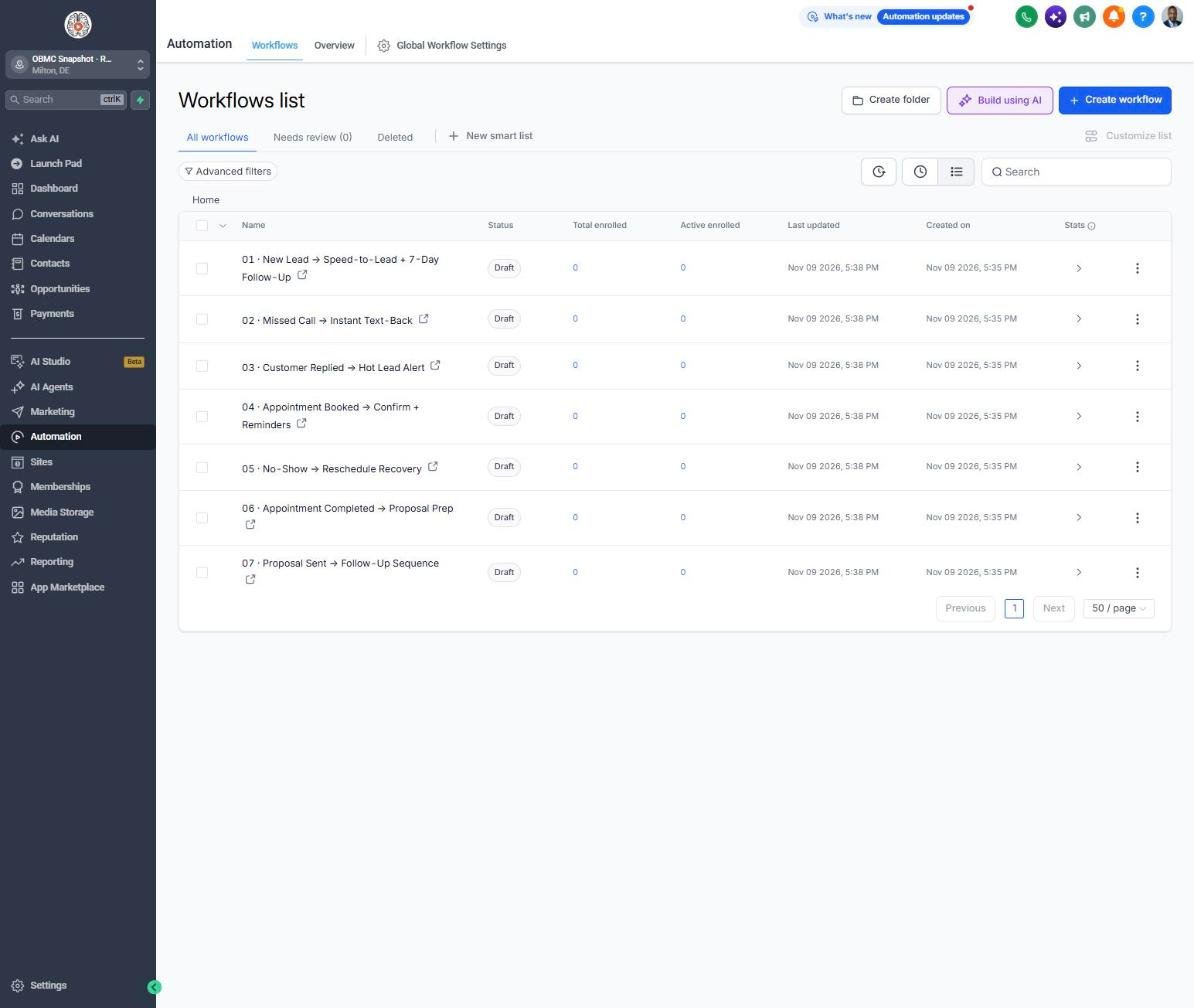
- Open Automation > Workflows > 01 New Lead and confirm the trigger and staff notification
- Open workflow 02 Missed Call and confirm call forwarding to the front desk
- Submit a test inquiry and confirm the text, email, and New Inquiry opportunity
Lesson 3 of 6
Book Consultations and Recover No-Shows
Keep preparer calendars full with prepared prospects.
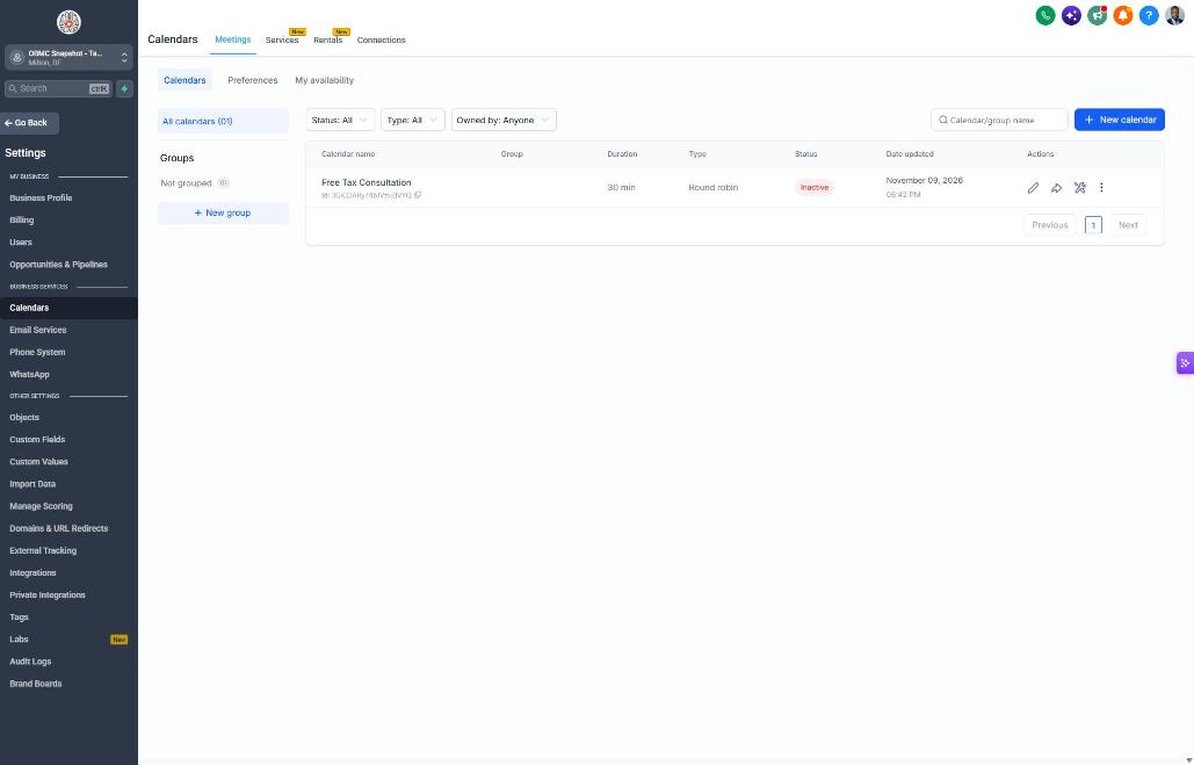
- Go to Calendars > Calendar Settings and open Free Tax Consultation
- Assign preparers and set tax season and off-season availability
- Paste the calendar link into Settings > Custom Values > Booking Link
- Open workflow 04 and confirm reminders ask for last year's return
- Mark a test appointment as no-show and confirm workflow 05 sends the reschedule sequence
Lesson 4 of 6
Track Engagement Letters Through Filing
See every client by stage from inquiry to filed return.
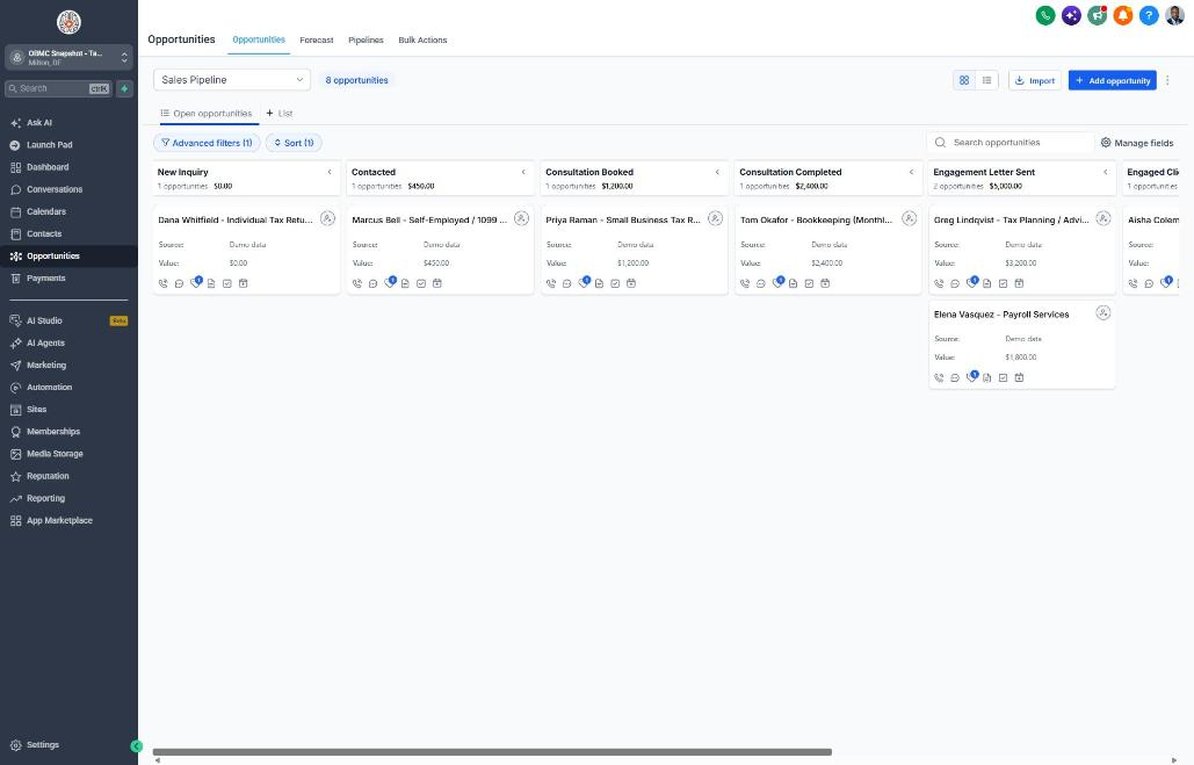
- Open Opportunities > Pipelines > Sales Pipeline and review stages from New Inquiry to Engaged Client
- Move a test deal to Engagement Letter Sent and confirm workflow 07 starts
- Set workflow 18 to alert staff when an engagement letter is unsigned for 3+ days
- Move a test deal to Engaged Client and confirm workflow 08 sends the welcome and portal instructions
- Review the Customer Journey pipeline stages Documents Requested, Return In Preparation, and Filed / Delivered
Lesson 5 of 6
Reviews, Referrals, and Rebooking Last Year's Clients
Earn reviews at filing time and fill January with returning clients.
- Go to Reputation > Settings, connect Google Business Profile, and add the review link to Custom Values
- Open workflow 11 and route 1-3 star feedback to the firm owner
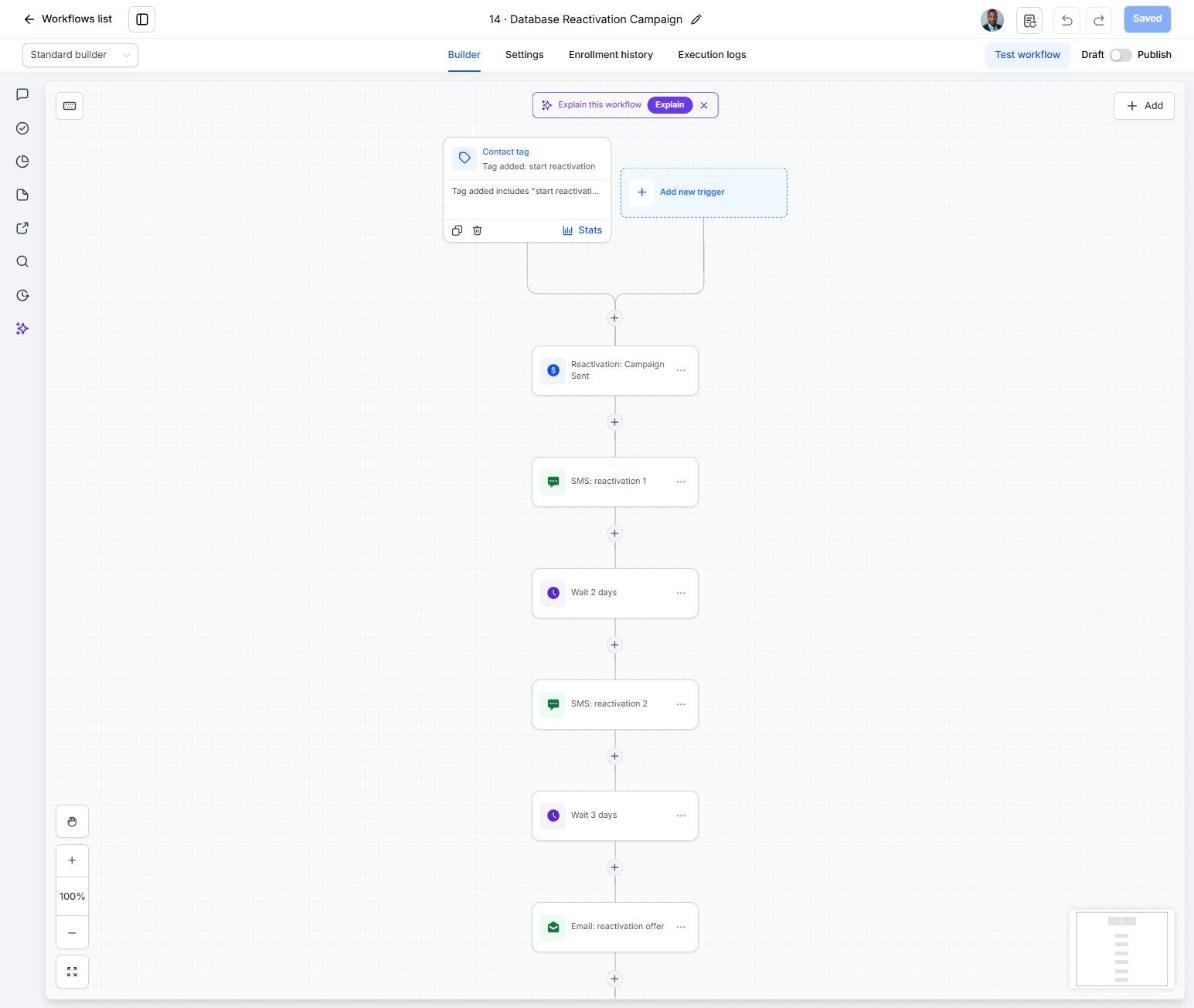
- Import last year's clients in Contacts > Import and tag them 'returning-client'
- Enroll the tagged list in workflow 14 in early January
- Schedule workflow 20 for early January to open early-bird appointments
Lesson 6 of 6
Launch Document Collection and Year-Round Advisory
Cut document chasing in season and keep revenue coming after April.
- Open workflow 21 and add your secure portal link to the checklist email
- Set the reminder loop to stop when Documents Status equals Complete
- Add a branch that flags incomplete clients about 2-3 weeks before the deadline and sets Extension Filed to Recommended
- Set workflow 19 to send mid-year planning check-ins from June to September
- Review days-to-complete documents and off-season engagements monthly in Contacts and Reporting
Launch your next tax & accounting client this week
One-time $397. Includes the snapshot, both PDFs, the walkthrough and the mini-course. Or get all 20 niches for $1,997.