
Salon snapshot setup guide
Install, brand and launch the snapshot in about an hour. Follow the steps in order.
Setup checklist
Load the snapshot
Open the snapshot share link while logged in to your agency to import it. Go to Account Snapshots > Imported Snapshots, open the actions menu on the Salon snapshot and choose Push to Sub-Account, or pick it when creating a new sub-account under Sub-Accounts > Create Sub-Account.
Complete the business profile
In the salon's sub-account, go to Settings > Business Profile and add the salon name, address, phone, logo and time zone. Accurate hours and time zone keep reminders from going out at odd times.
Fill in custom values
Go to Settings > Custom Values and update the business name, owner name, phone and service area. Confirm the new-client offer, referral reward, returning-client offer and birthday offer with the owner.
Connect the phone number and register A2P
Go to Settings > Phone Numbers to buy or port the salon's number, then finish A2P 10DLC registration in the Trust Center. Use appointment reminders plus marketing as the use case and include sample messages from this snapshot.
Set up email sending
Go to Settings > Email Services and add a dedicated sending domain such as mail.salonname.com. Verify the DNS records so confirmations reach the inbox.
Configure calendars and deposits
Go to Calendars > Calendar Settings and edit New Client Appointment: assign stylists, set service durations and buffers, and turn on payments if the salon takes deposits (connect Stripe under Payments > Integrations first). Copy the booking link into the booking_link custom value.
Customize and embed the forms
Go to Sites > Forms > Builder. Update the service list, stylist names and preferred days, then embed the form on the website and link it from the Instagram bio.
Review the pipelines
Go to Opportunities > Pipelines and walk through First Visit Booked, First Visit Completed and Rebook Offered. Show the front desk how to move a card to Won when a new client books their second visit.
Connect Google reviews
Go to Settings > Integrations and connect the salon's Google Business Profile. Confirm the review link under Reputation > Settings and paste it into the review_link custom value.
Set up rebook and slow-day tagging
Under Contacts > Smart Lists, build a list of clients past their Rebook Interval and tag them 'service due'. Decide who checks the book each Monday and tags flexible clients 'niche campaign' when midweek gaps appear.
Assign alerts and publish workflows
Go to Automation > Workflows, open each workflow, set alerts to the front desk or owner, confirm the From name and publish. Keep workflow 20 in draft until early November.
Go live test
Submit the form as a test contact, call the salon number and let it ring out, then book a test appointment. Confirm in Conversations that every message and the cancellation policy came through, check the team alert, then delete the test contact.
Custom values: fill these once
All 21 workflows pull from these values, so your client's name, links and offers show up everywhere. Pre-filled salon defaults are shown; replace the business details.
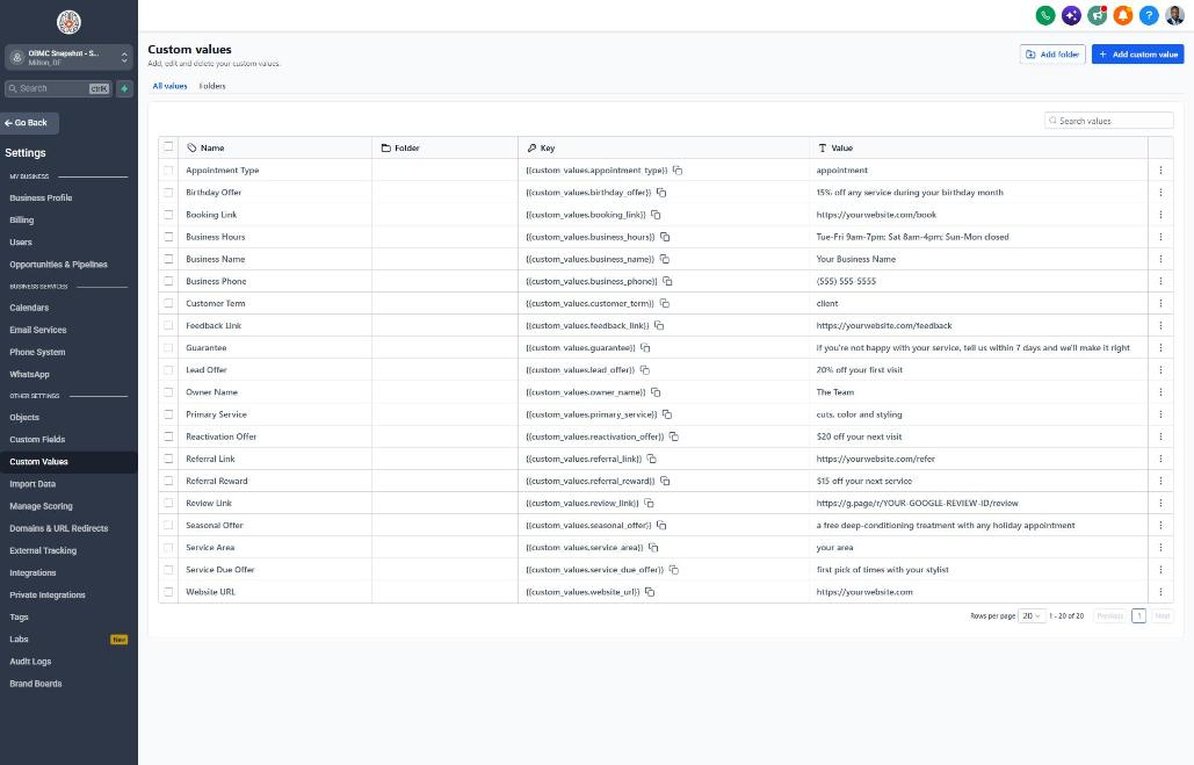
| Custom value | Salon default |
|---|---|
| Business Name | Your value |
| Business Phone | Your value |
| Owner Name | Your value |
| Website URL | Your value |
| Booking Link | Your value |
| Review Link | Your value |
| Feedback Link | Your value |
| Referral Link | Your value |
| Service Area | Your value |
| Customer Term | client |
| Appointment Type | appointment |
| Primary Service | cuts, color and styling |
| Lead Offer | 20% off your first visit |
| Guarantee | if you're not happy with your service, tell us within 7 days and we'll make it right |
| Referral Reward | $15 off your next service |
| Reactivation Offer | $20 off your next visit |
| Seasonal Offer | a free deep-conditioning treatment with any holiday appointment |
| Service Due Offer | first pick of times with your stylist |
| Birthday Offer | 15% off any service during your birthday month |
| Business Hours | Tue-Fri 9am-7pm; Sat 8am-4pm; Sun-Mon closed |
KPIs to track every week
| Metric | Goal | Where in GoHighLevel |
|---|---|---|
| Speed to reply | Answer every new inquiry within 5 minutes during open hours | Conversations and the Sales Pipeline opportunity timeline |
| No-show rate | Keep no-shows as low as possible and lower them each quarter | Reporting > Appointment Report (no-show status) |
| New-client rebook rate | Get most first-time clients to book a second visit | Opportunities > Pipelines, Rebook Offered vs Won |
| Midweek fill | Fill a steady share of open midweek slots from each workflow 21 send | Calendars > Appointments and Automation > Workflows > 21 > Execution Logs |
| Lapsed clients returned | Bring back a steady number of lapsed clients every reactivation send | Reactivation pipeline, Booked stage |
| New Google reviews | Earn several new 5-star reviews every month | Reputation > Overview |
Campaign ideas for your client
- New-client discount on the first visit with a booked consultation
- Pre-book reward: a small perk for booking the next visit before leaving
- Midweek perk: a free add-on (gloss, conditioning, beard oil) on Tuesday and Wednesday bookings
- Returning-client offer for anyone who hasn't visited in 90+ days
- Holiday, prom or wedding-season packages with priority booking
Compliance notes
- TCPA and A2P 10DLC: only text clients who opted in (booking consent or a form checkbox), keep 'Reply STOP to opt out' on first messages, and complete A2P registration before sending.
- Deposits and cancellation fees: state the policy clearly at booking and in the confirmation, and make sure it matches what the salon actually charges.
- Reviews: never offer discounts or freebies in exchange for a review, and don't filter review requests in a way your review platform prohibits. The referral reward is for referrals only.
- Before-and-after photos: get written client permission before using their photos in texts, emails or social posts.
This is general guidance, not legal advice. Confirm the rules for your client's state and industry.