
🐜 GoHighLevel snapshot · Pest Control
Pest Control snapshot mini-course
Six short visual lessons. Follow along in your own GoHighLevel account and you’ll be live by lesson 6.
Lesson 1
Install the snapshot and brand it for a pest control company
Lesson 2Lead capture and speed-to-lead
Lesson 3Inspection booking and no-show recovery
Lesson 4Quotes and selling the service plan
Lesson 5Reviews, referrals and win-backs
Lesson 6Launch and run the seasonal pest playbook
Lesson 1 of 6
Install the snapshot and brand it for a pest control company
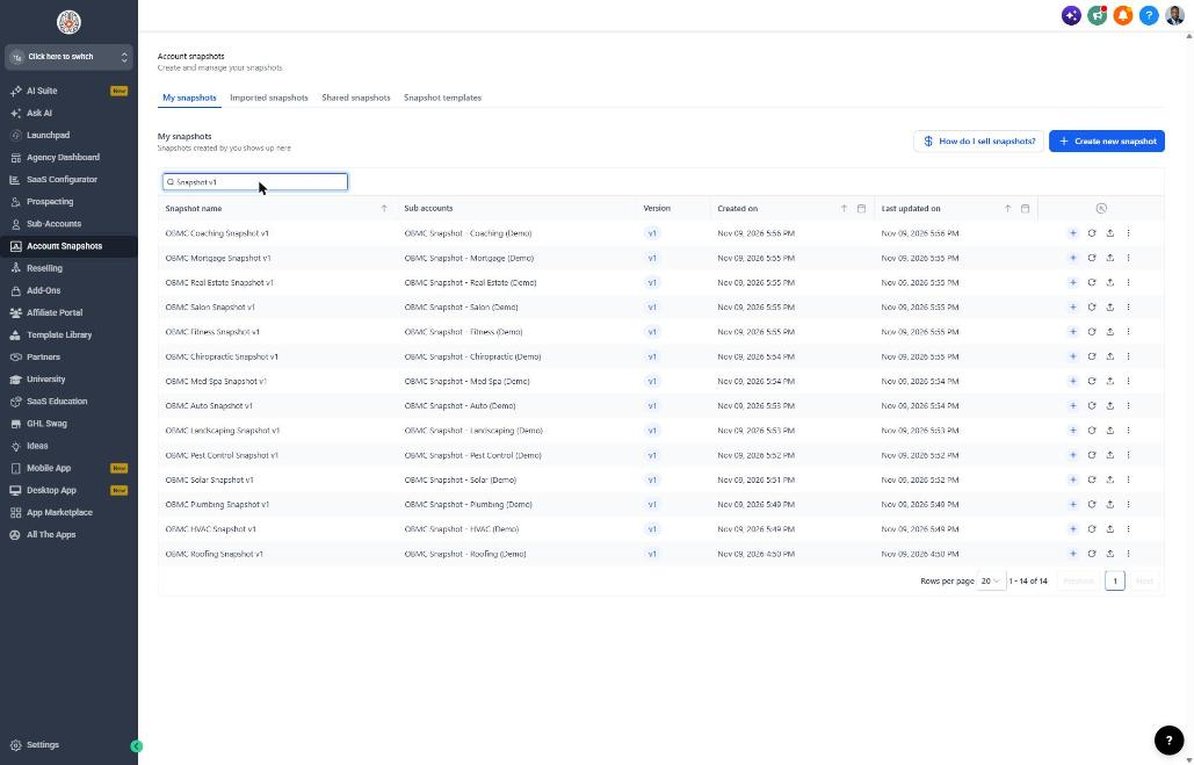
Load the snapshot and make every message sound like the pest control company.
- In the agency view, go to Sub-Accounts and choose Load Snapshot on the client's account
- Go to Settings > Business Profile and set the name, address and time zone
- Go to Settings > Custom Values and fill in business details and service area
- Set the guarantee, seasonal and reactivation offers in Custom Values
- Go to Settings > Email Services and verify a sending domain
Lesson 2 of 6
Lead capture and speed-to-lead
Reply to every pest lead and missed call while techs are on routes.
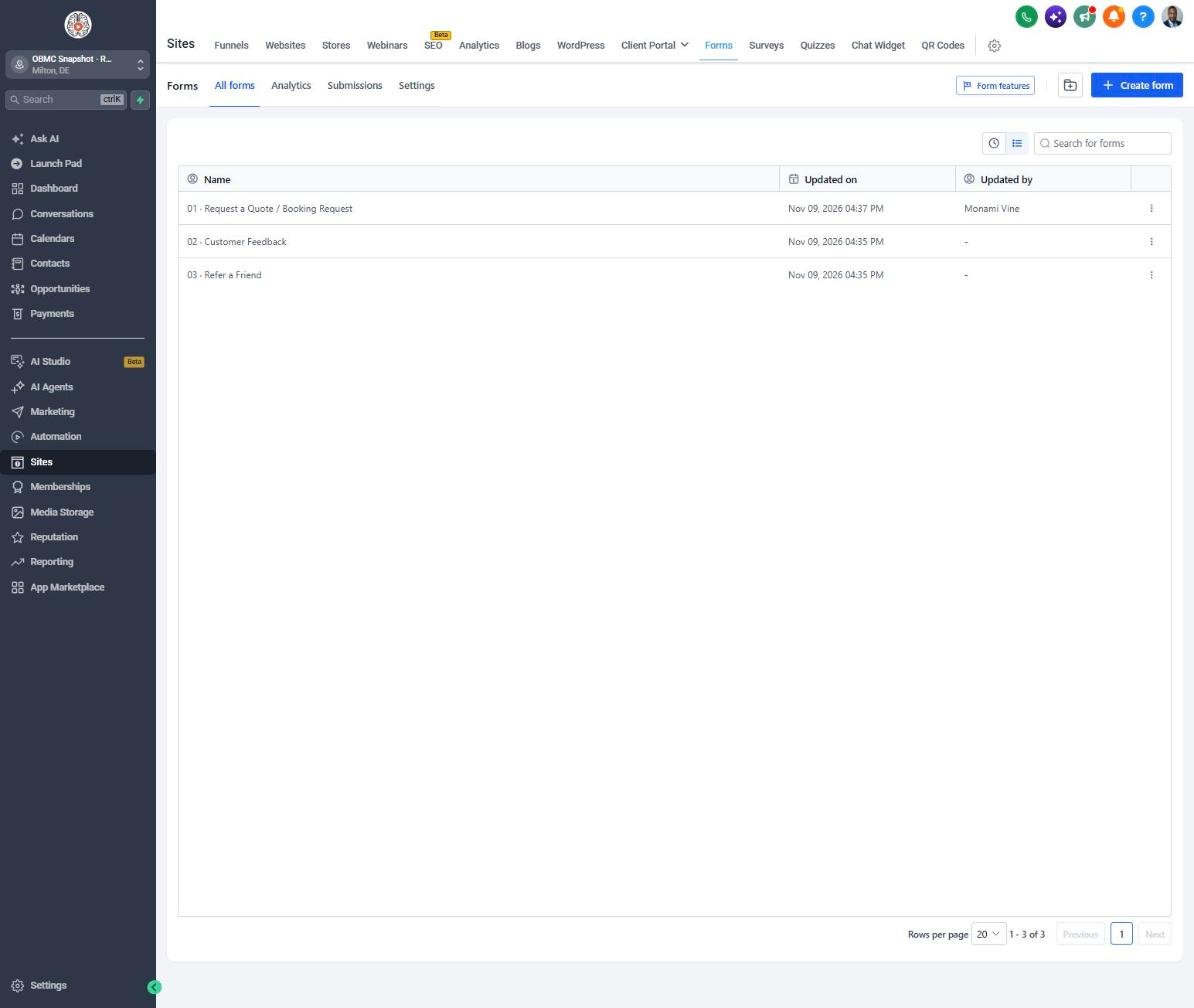
- Go to Sites > Forms > Builder and confirm the Pest Type, Infestation Severity and Property Type questions
- Add the SMS consent checkbox and embed the form on the website
- Go to Automation > Workflows, open 01 New Lead and point the alert at the office
- Open 02 Missed Call and test it by calling the business number and hanging up
- Publish workflows 01, 02 and 03
Lesson 3 of 6
Inspection booking and no-show recovery
Fill inspection slots along the route and recover no-shows.
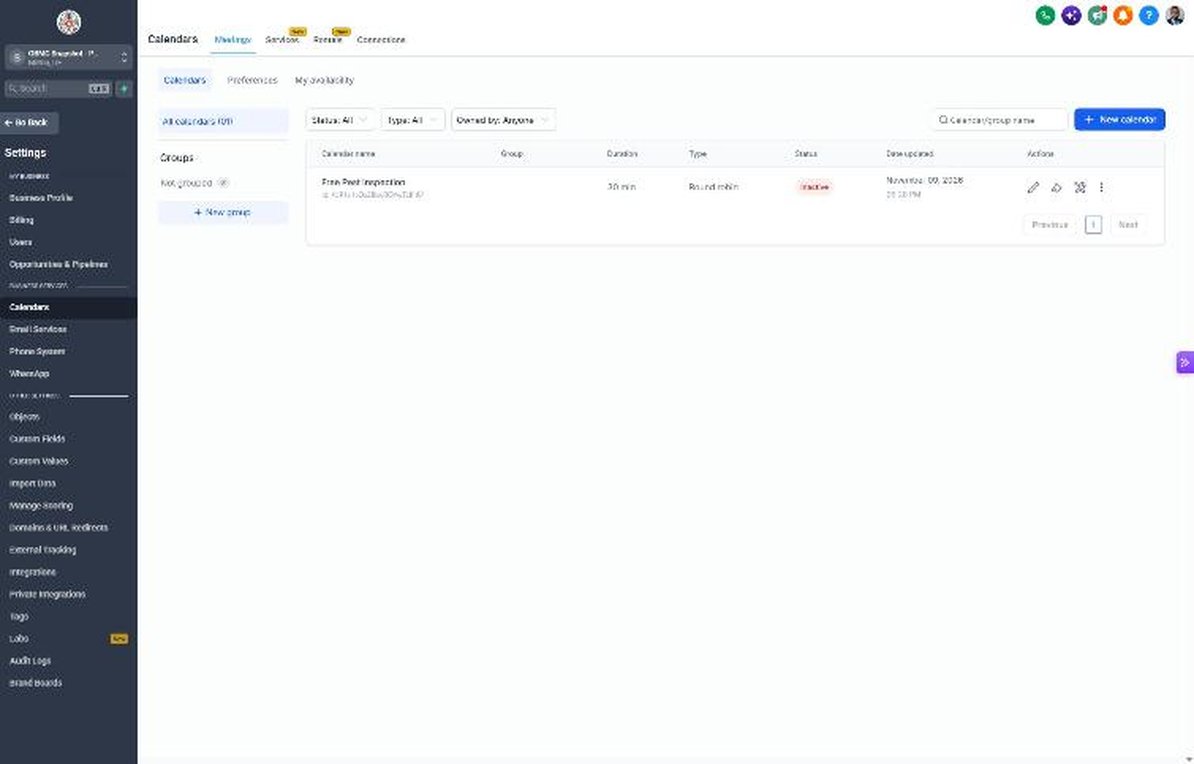
- Go to Calendars > Calendar Settings and open Free Pest Inspection
- Assign technicians and set availability by route day if needed
- Copy the booking link into the booking_link custom value
- Open workflow 04 and review the confirmation and reminder texts
- Publish workflow 05 so missed inspections get rebooked automatically
Lesson 4 of 6
Quotes and selling the service plan
Follow up on every quote and convert one-time buyers into recurring plans.
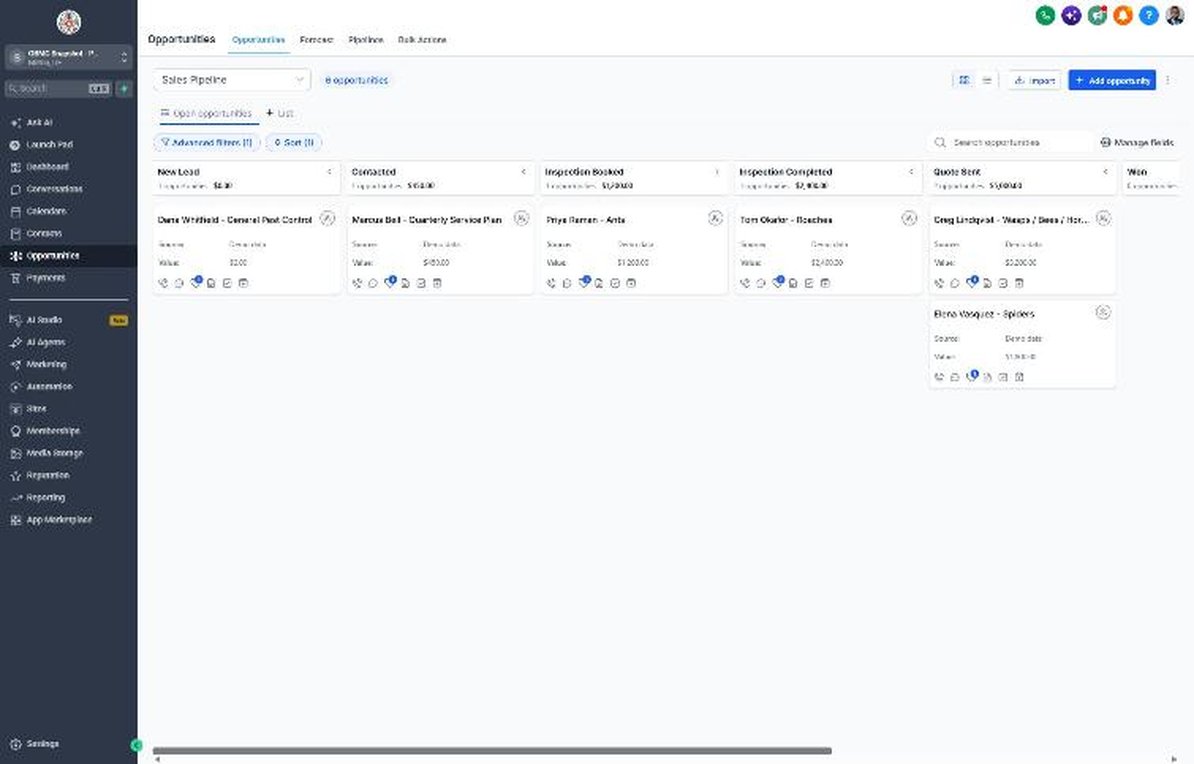
- Go to Opportunities > Pipelines and review the Sales Pipeline stages
- Move a test deal to Quote Sent and confirm workflow 07 starts
- Update workflow 07's email to describe your actual plan options and pricing
- Review workflow 18 so stalled quotes alert the owner after 7 days
- Set Service Plan Status on every won customer so reminders and win-backs target the right people
Lesson 5 of 6
Reviews, referrals and win-backs
Turn services into reviews and referrals, and bring canceled customers back.
- Go to Reputation > Settings and paste the Google review link into the review_link custom value
- Open workflow 11 and confirm 4-5 star ratings go to Google and 1-3 star ratings alert the owner
- Import canceled and one-time customers under Contacts > Import with consent status
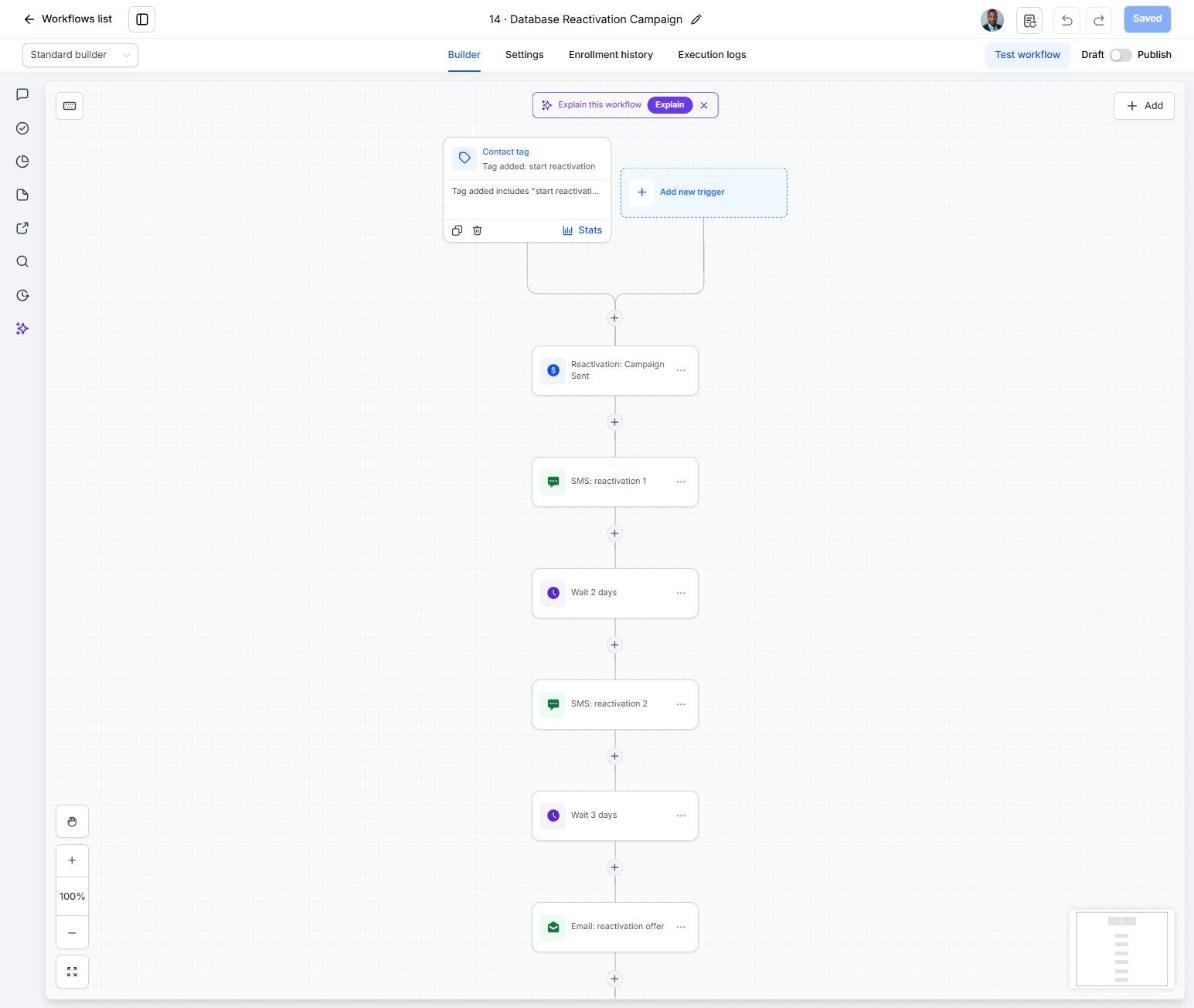
- Open workflow 14 and launch the restart offer to a small batch first
- Work replies in Conversations and add winners back to the route
Lesson 6 of 6
Launch and run the seasonal pest playbook
Go live and launch the Seasonal Pest Pressure Alert at every season change.
- Run a full test: form, booking, missed call and reply
- Go to Contacts and build a smart list of leads, one-time customers and canceled plans
- Edit workflow 21's email to name the pests your techs are seeing this season
- Add the trigger tag to the smart list to launch the campaign
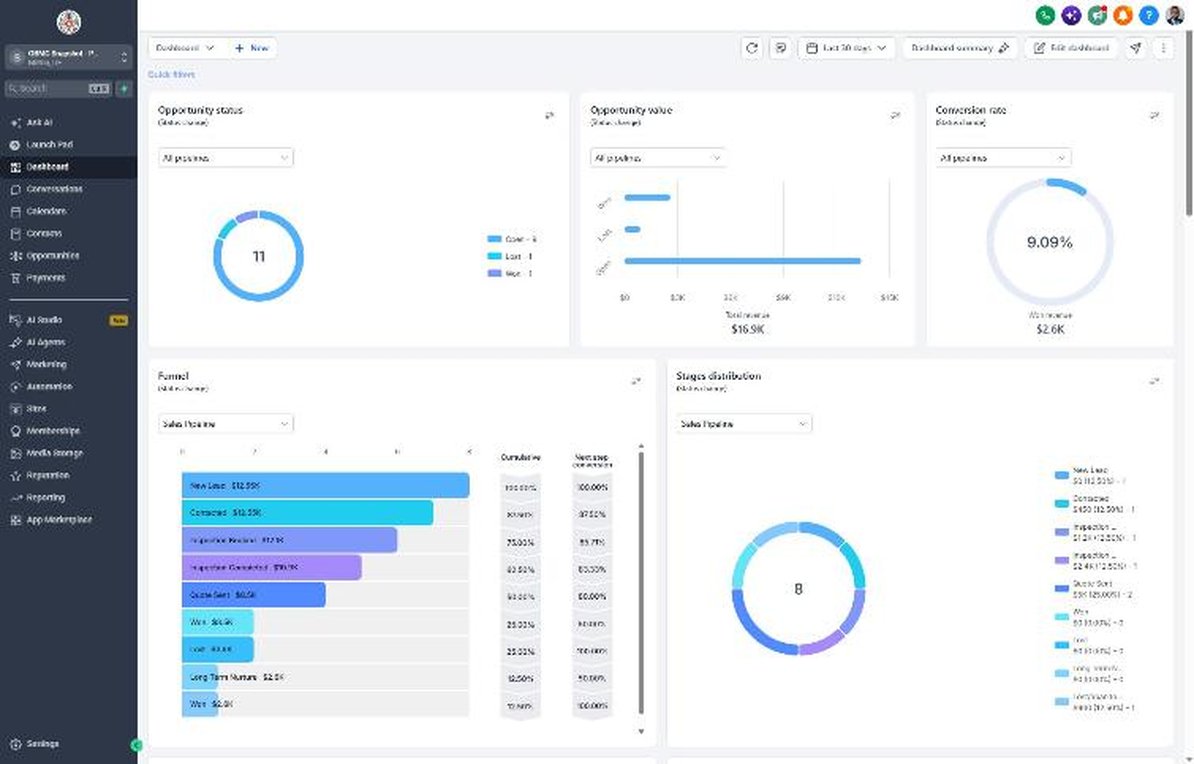
- Track inspections booked and plans sold on the Dashboard, and repeat each quarter
Launch your next pest control client this week
One-time $397. Includes the snapshot, both PDFs, the walkthrough and the mini-course. Or get all 20 niches for $1,997.