
🌿 GoHighLevel snapshot · Landscaping & Lawn Care
Landscaping snapshot mini-course
Six short visual lessons. Follow along in your own GoHighLevel account and you’ll be live by lesson 6.
Lesson 1
Install the Snapshot and Brand It for Your Lawn Care Company
Lesson 2Capture Every Lead, Even When You're on a Mower
Lesson 3Book Estimate Visits and Recover No-Shows
Lesson 4Track Estimates Until They Close
Lesson 5Reviews, Referrals and Reactivating Last Season's Customers
Lesson 6Launch the Season: Cleanups and Annual Care Plans
Lesson 1 of 6
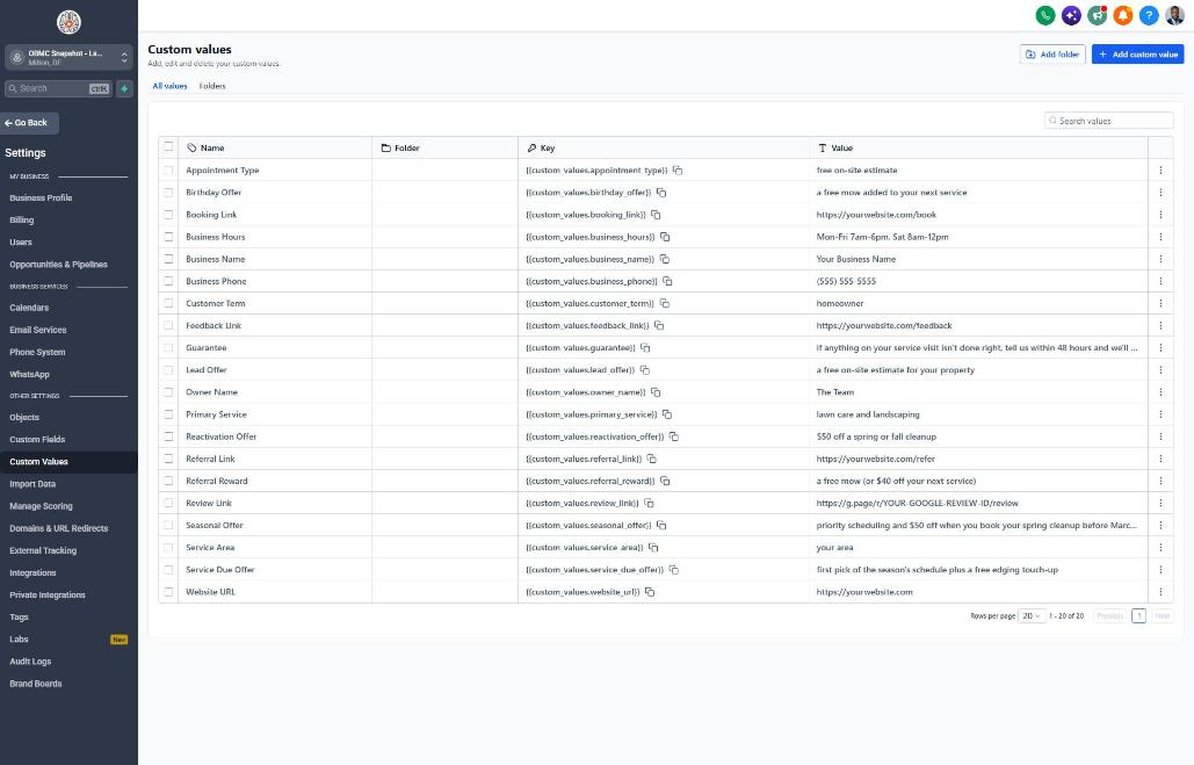
Install the Snapshot and Brand It for Your Lawn Care Company
Load the snapshot and make every message sound like the landscaping company.
- Load the snapshot from Agency view > Account Snapshots > Imported Snapshots
- Enter company details in Settings > Business Profile and confirm the time zone
- Fill in every value in Settings > Custom Values, including Service Area and Owner Name
- Set this season's offers in the Lead Offer, Seasonal Offer and Reactivation Offer values
- Review the 7 landscaping fields in Settings > Custom Fields
Lesson 2 of 6
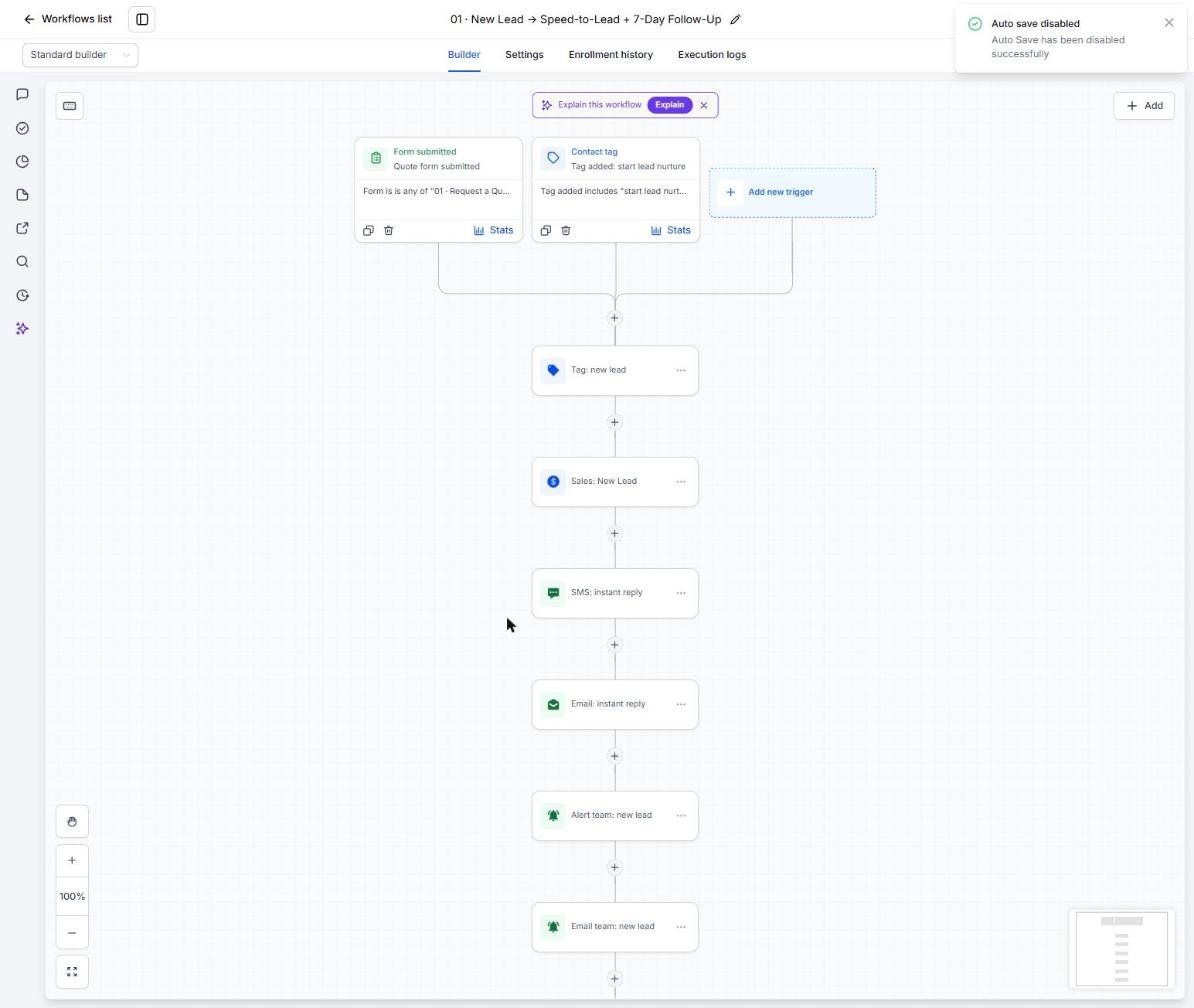
Capture Every Lead, Even When You're on a Mower
Make sure every form fill and missed call gets an instant reply.
- Open Sites > Forms > Builder and check the quote form fields for address, lot size and frequency
- Embed the form on the website's contact and service pages
- Open Automation > Workflows > 01 and review the instant text and 7-day follow-up
- Open Workflow 02 and confirm the missed-call text-back is published
- Test by submitting the form and calling the business number from your own phone
Lesson 3 of 6
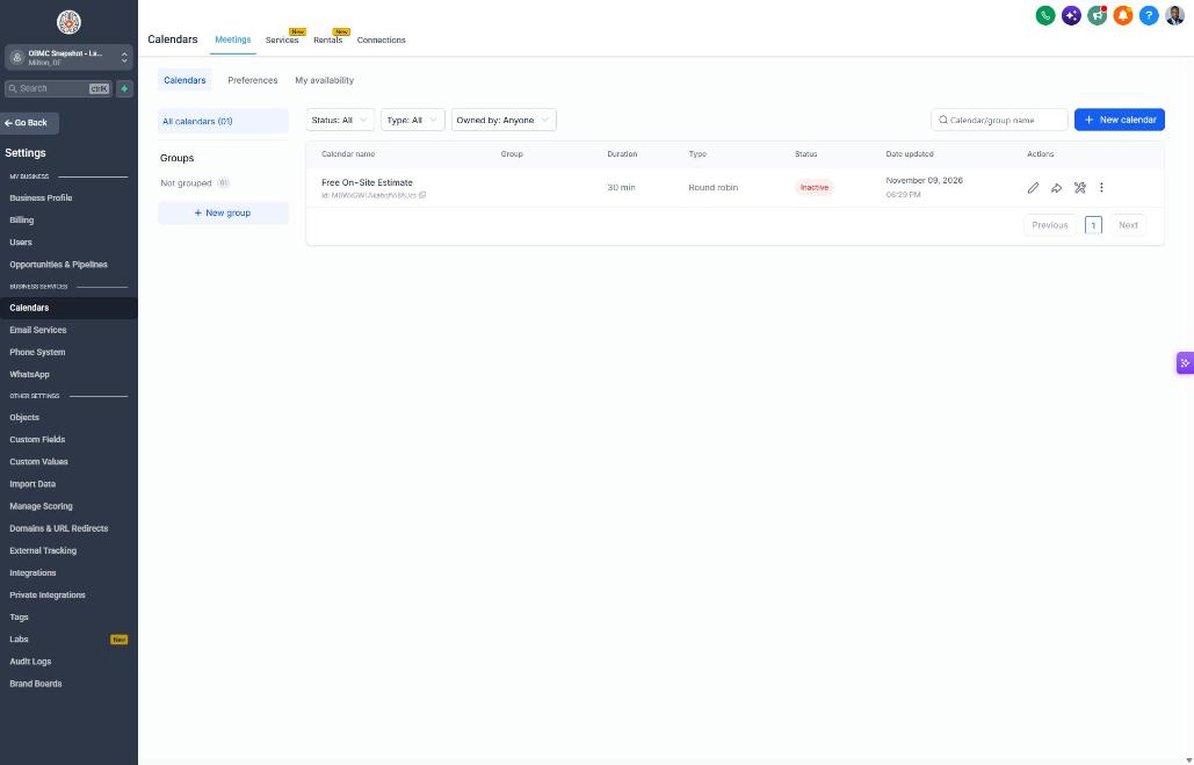
Book Estimate Visits and Recover No-Shows
Get property walks on the calendar and make sure they happen.
- Open Calendars > Calendar Settings > Free On-Site Estimate and set real availability
- Add a drive-time buffer between estimate visits
- Copy the booking link into Settings > Custom Values > Booking Link
- Review the gate and pet reminders in Automation > Workflows > 04
- Review Workflow 05 so missed visits get a reschedule link automatically
Lesson 4 of 6
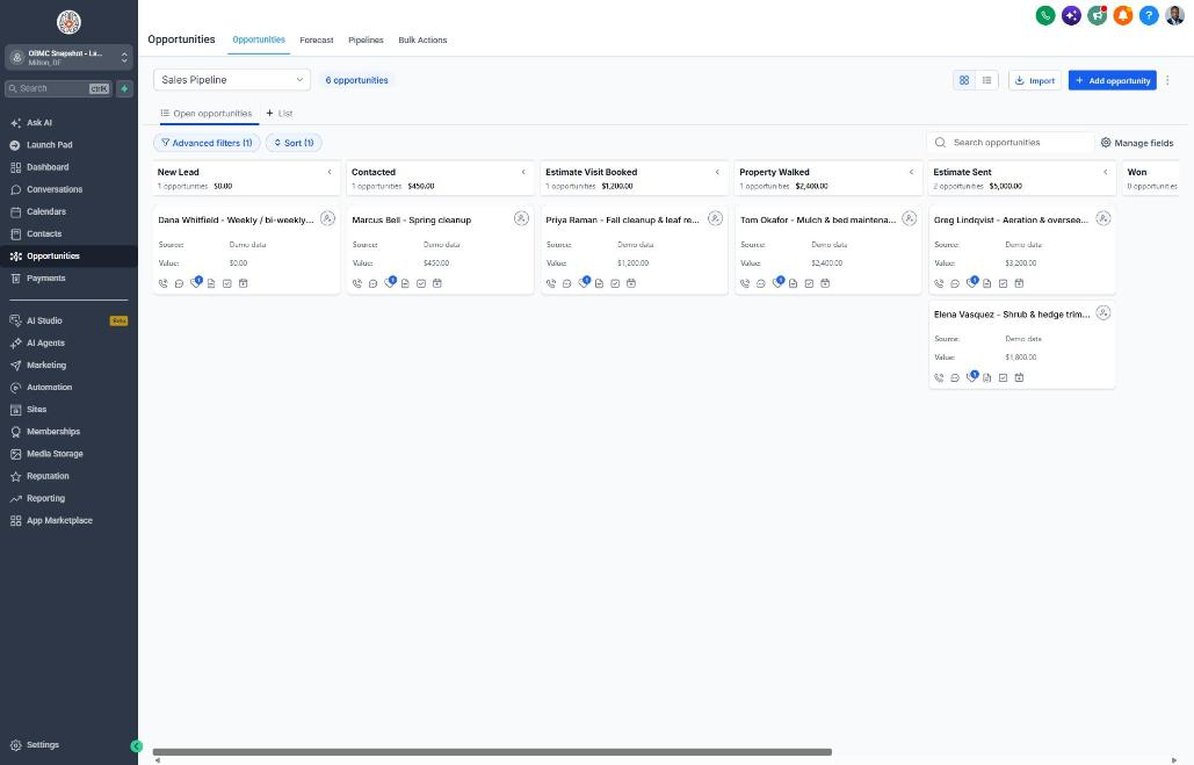
Track Estimates Until They Close
Run every estimate through the pipeline so none go cold.
- Open Opportunities > Pipelines and walk through the Estimate Visit Booked to Won stages
- Move a test deal to Estimate Sent and watch Workflow 07 start
- Add deal values so the pipeline shows real dollars
- Set up the Stale Deal Alert in Workflow 18 to go to the estimator's phone
- Mark won and lost deals every Friday to keep the pipeline honest
Lesson 5 of 6
Reviews, Referrals and Reactivating Last Season's Customers
Turn finished jobs into reviews and neighbor referrals, and bring old customers back.
- Connect Google Business Profile in Settings > Integrations and copy the review link
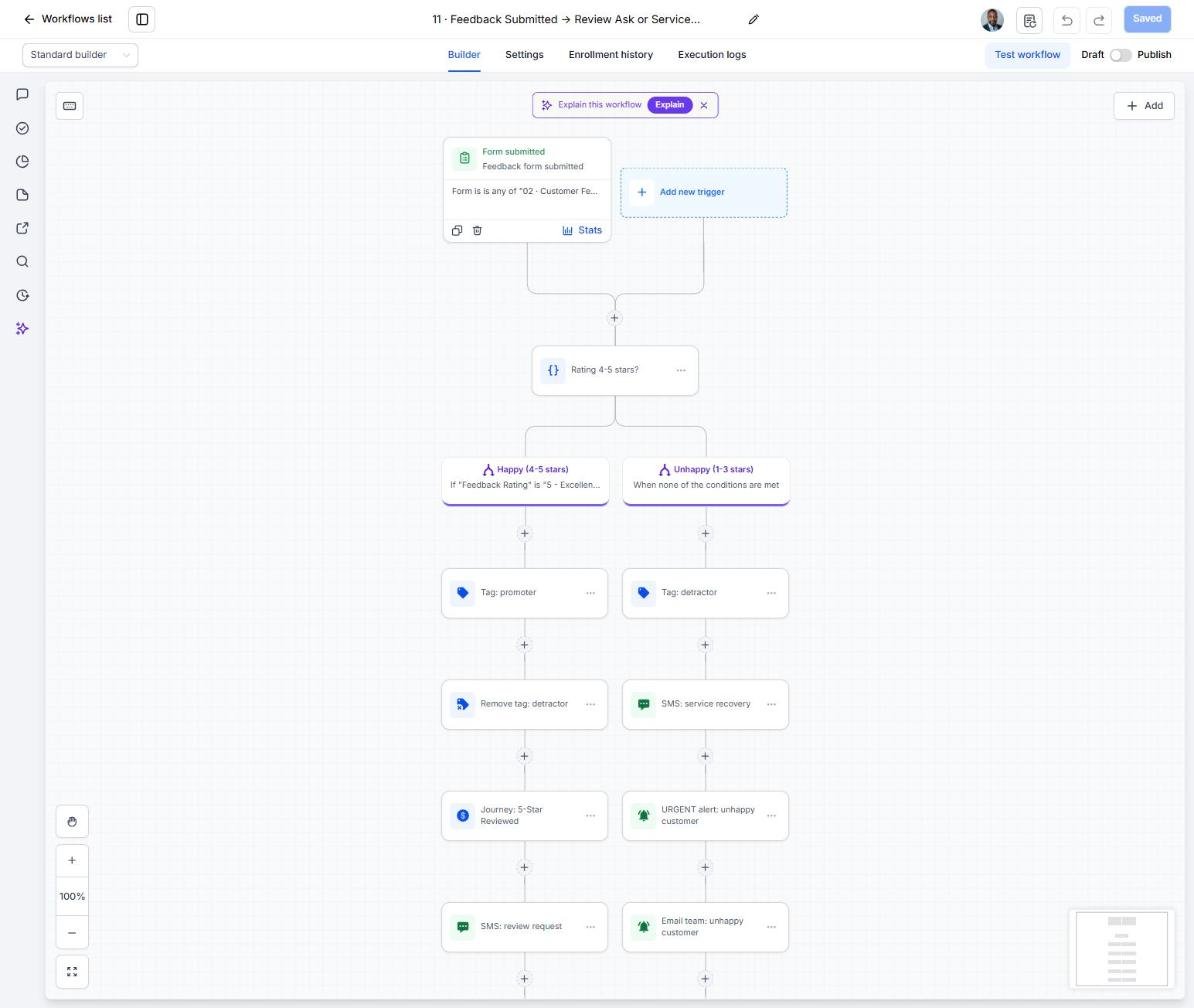
- Review the feedback split in Automation > Workflows > 11
- Check the neighbor referral copy in Workflow 12
- Import last season's customers in Contacts > Import
- Tag a small test group 'start reactivation' to launch Workflow 14
Lesson 6 of 6
Launch the Season: Cleanups and Annual Care Plans
Run the seasonal and annual plan campaigns that fill routes before spring.
- Update the Seasonal Offer value for spring or fall cleanups
- Filter Contacts by Contract Type = Per visit and tag them 'niche campaign' to start Workflow 21
- Tag the full customer list 'seasonal promo' to start Workflow 20 in late February
- Watch replies in Conversations and move interested contacts to Won
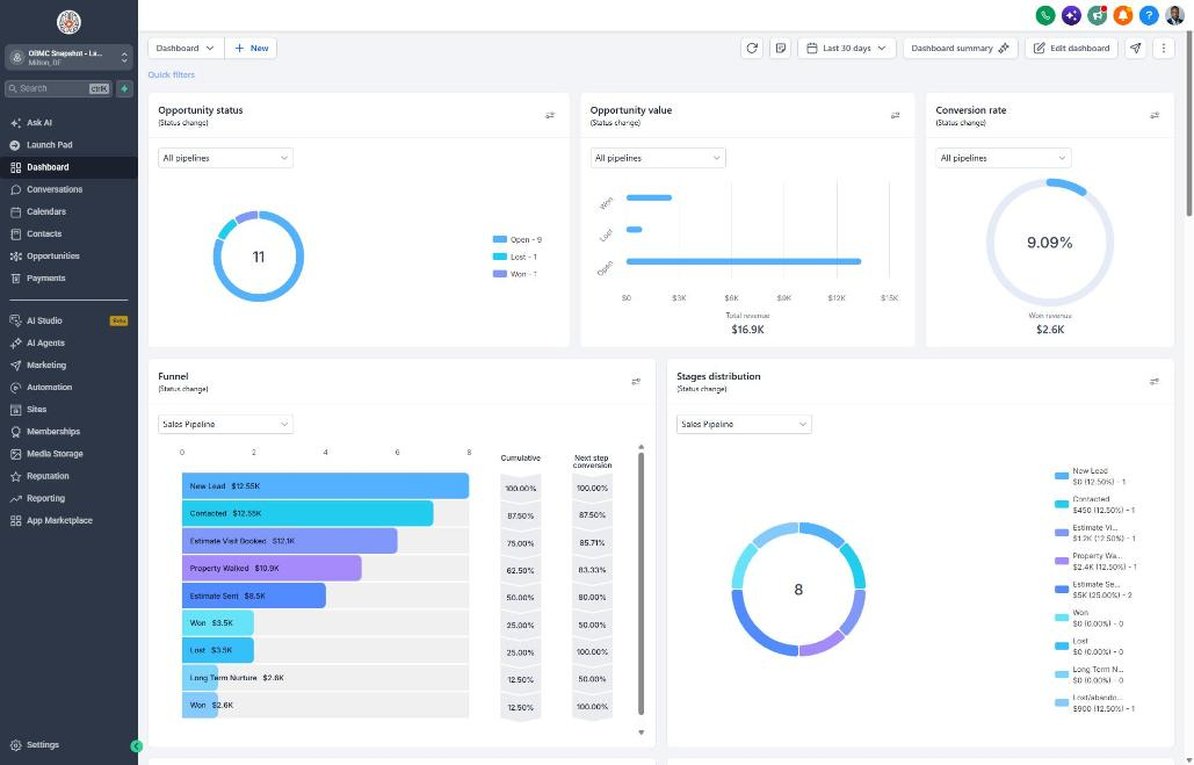
- Review KPIs on the Dashboard every Monday during the season
Launch your next landscaping client this week
One-time $397. Includes the snapshot, both PDFs, the walkthrough and the mini-course. Or get all 20 niches for $1,997.