
🏋️ GoHighLevel snapshot · Gyms & Fitness Studios
Fitness snapshot mini-course
Six short visual lessons. Follow along in your own GoHighLevel account and you’ll be live by lesson 6.
Lesson 1
Install and brand the fitness snapshot
Lesson 2Capture trial leads and reply in seconds
Lesson 3Book intro sessions and cut no-shows
Lesson 4Track trials through to membership
Lesson 5Reviews, referrals and win-backs
Lesson 6Launch retention and optimize
Lesson 1 of 6
Install and brand the fitness snapshot
Get the snapshot into the gym's sub-account and branded with its name, offers and hours.
- Import the snapshot link, then go to Account Snapshots > Imported Snapshots and push it to the gym's sub-account.
- Open Settings > Business Profile and add the gym name, logo, address and time zone.
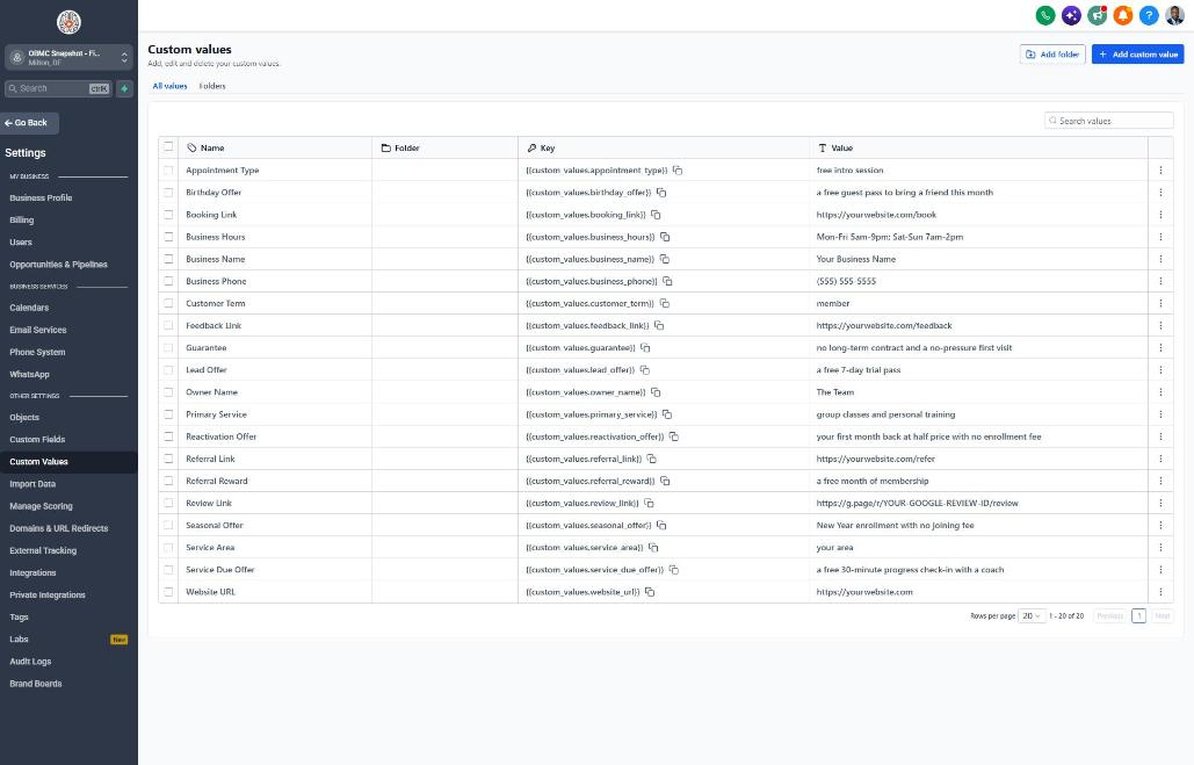
- Go to Settings > Custom Values and fill in owner name, phone, booking link and service area.
- Confirm the trial offer, comeback offer and referral reward with the owner and update those values.
- Update Business Hours so after-hours messages set the right expectations.
Lesson 2 of 6
Capture trial leads and reply in seconds
Make sure every trial lead and missed call gets an instant response with the offer.
- Go to Sites > Forms > Builder and adjust the trial request form for the gym's programs.
- Connect the form to the website and your Facebook or Instagram lead ads.
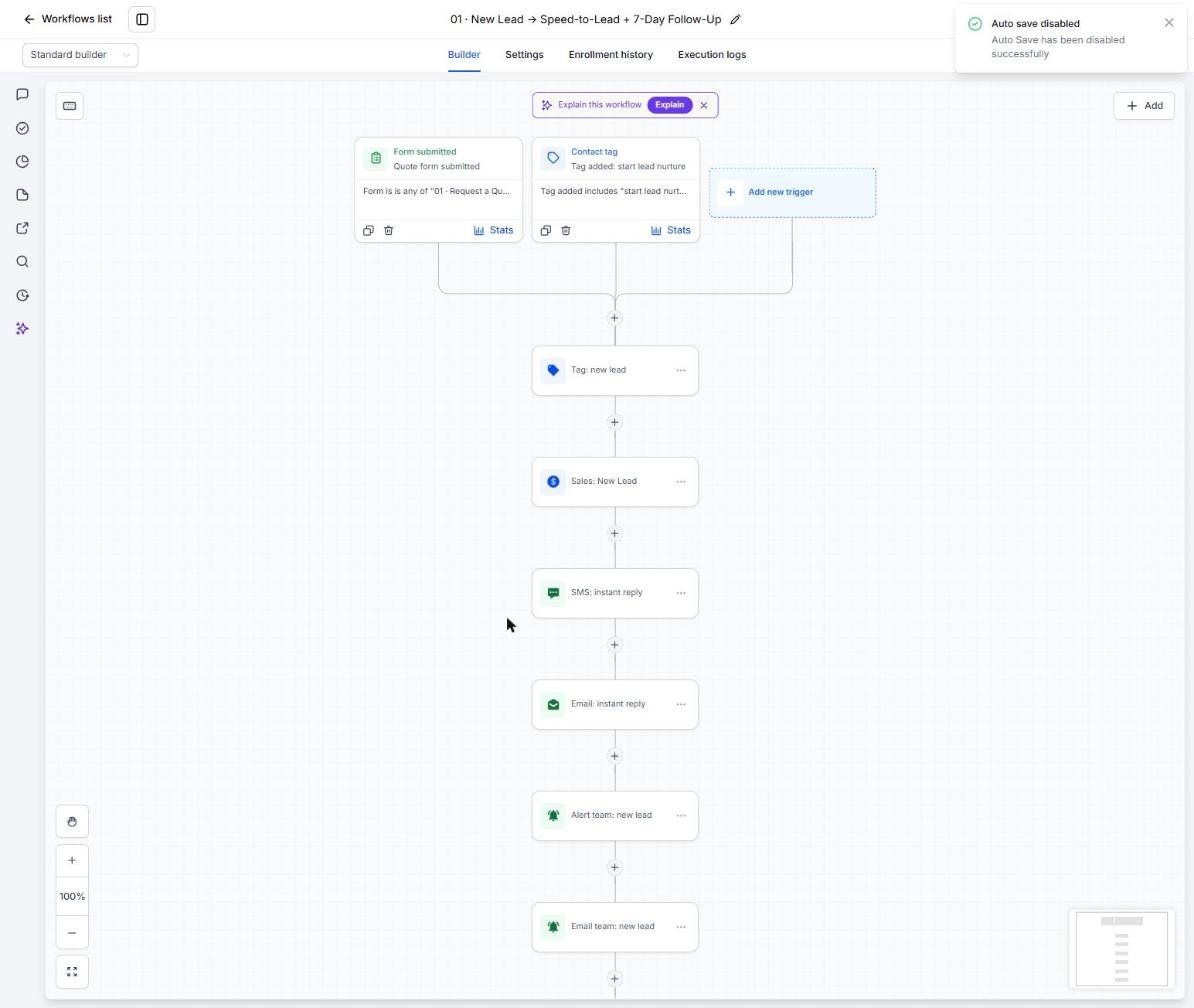
- Open Automation > Workflows > 01 and set the new-lead alert to the front desk.
- Open workflow 02 and confirm the missed-call text-back is published.
- Submit a test lead and check Conversations for the instant text and email.
Lesson 3 of 6
Book intro sessions and cut no-shows
Set up the intro session calendar so booked prospects actually walk in.
- Go to Calendars > Calendar Settings and edit Free Intro Session.
- Assign coaches and set availability around the class schedule.
- Copy the booking link into the booking_link custom value.
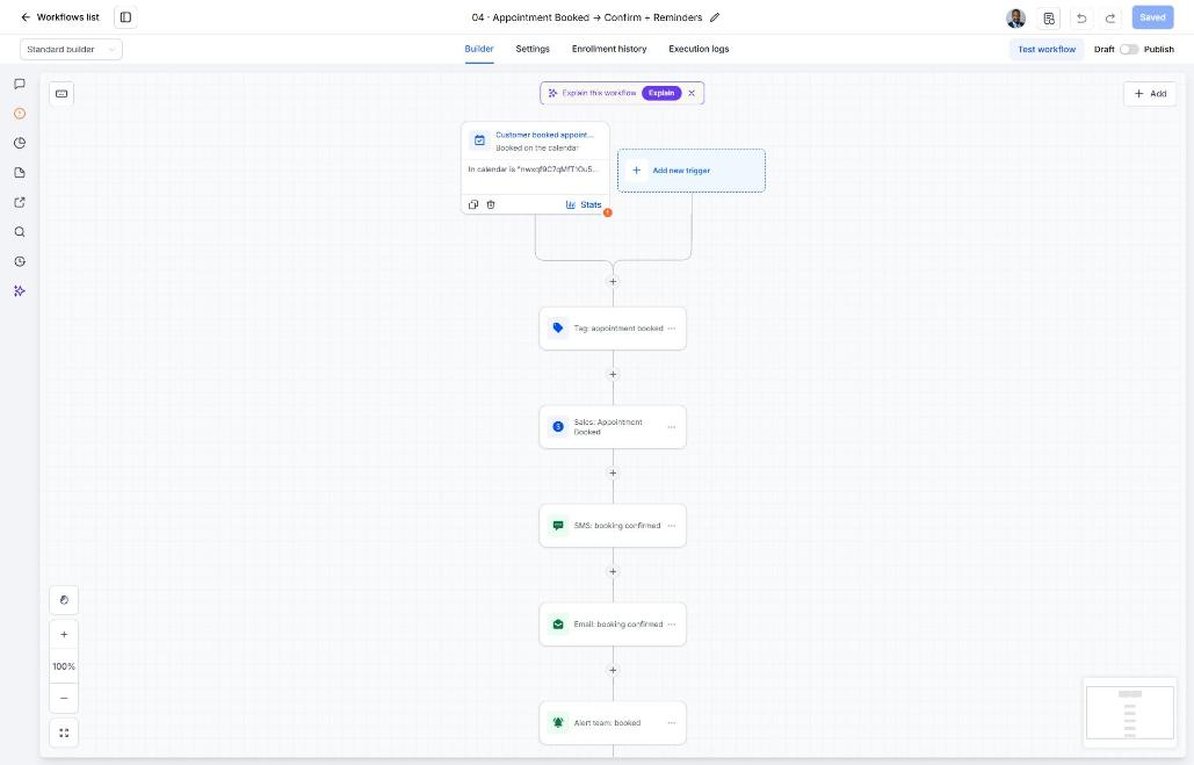
- Open workflow 04 and review the confirmation and reminder texts.
- Open workflow 05 and confirm the no-show recovery reminds them their trial is waiting.
Lesson 4 of 6
Track trials through to membership
Use the Sales Pipeline so every trial user gets a clear membership ask.
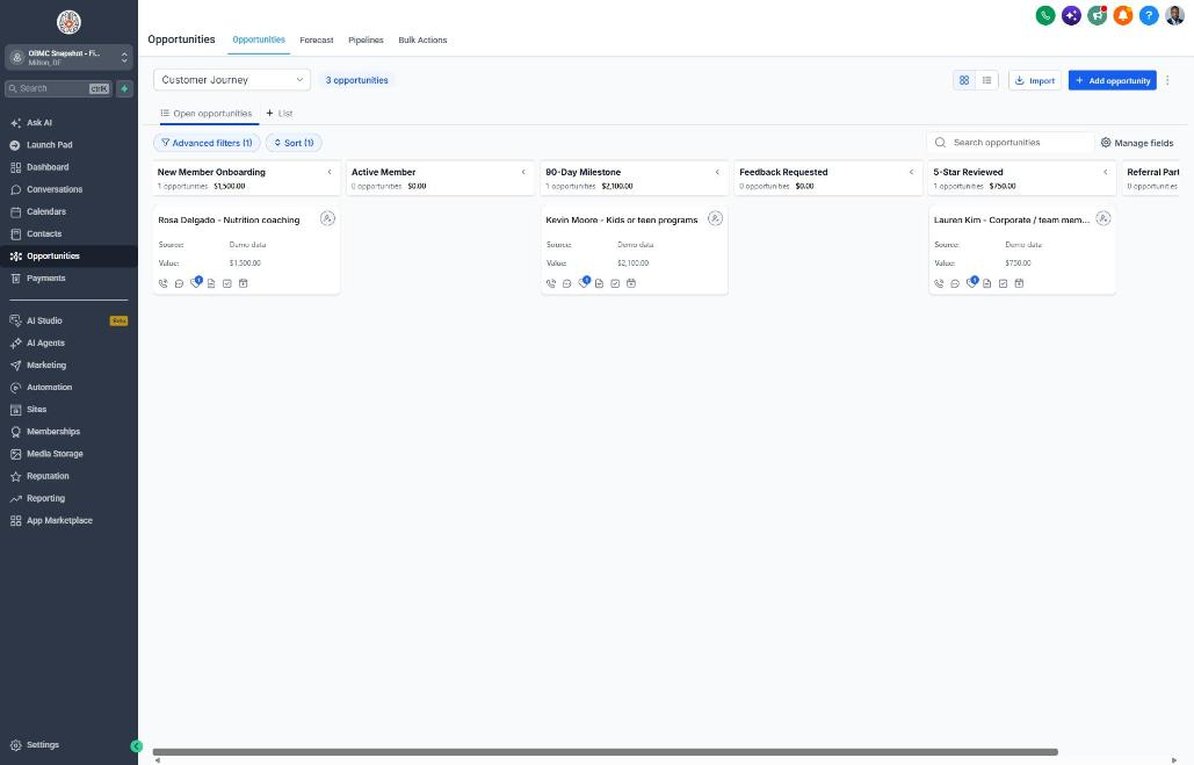
- Go to Opportunities > Pipelines and walk through Intro Session Booked, Trial Active and Membership Offer Sent.
- Train staff to move a card to Trial Active after the intro session and tag it 'niche campaign'.
- Review workflow 21 so the trial sequence matches the length of the gym's trial.
- Move cards to Won when someone joins to trigger the welcome in workflow 08.
- Use workflow 18 alerts to catch trial users nobody has followed up with.
Lesson 5 of 6
Reviews, referrals and win-backs
Turn happy members into reviews and referrals and bring former members back.
- Go to Settings > Integrations and connect the Google Business Profile.
- Confirm the review link in Reputation > Settings and the review_link custom value.
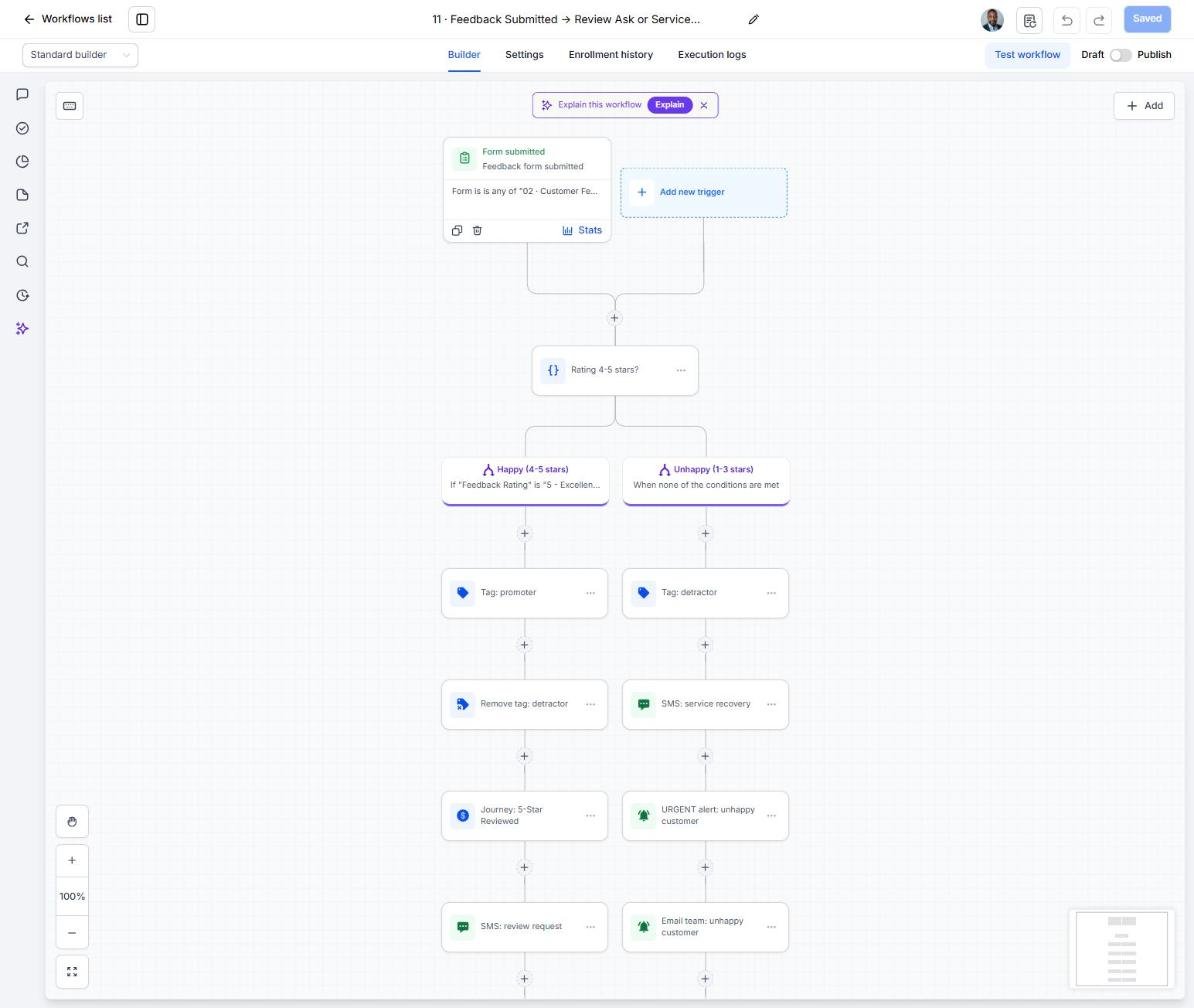
- Open workflow 11 and assign who receives private feedback from unhappy members.
- Export cancelled members from the gym software, import them under Contacts and tag them 'start reactivation'.
- Work replies from the Reactivation pipeline and Conversations.
Lesson 6 of 6
Launch retention and optimize
Keep members engaged and track the numbers that matter to the owner.
- Build a smart list of members due for a 90-day check-in and tag them 'service due'.
- Add a weekly routine to tag members with no recent check-ins for a coach call.
- Schedule the New Year campaign in workflow 20 for late December.
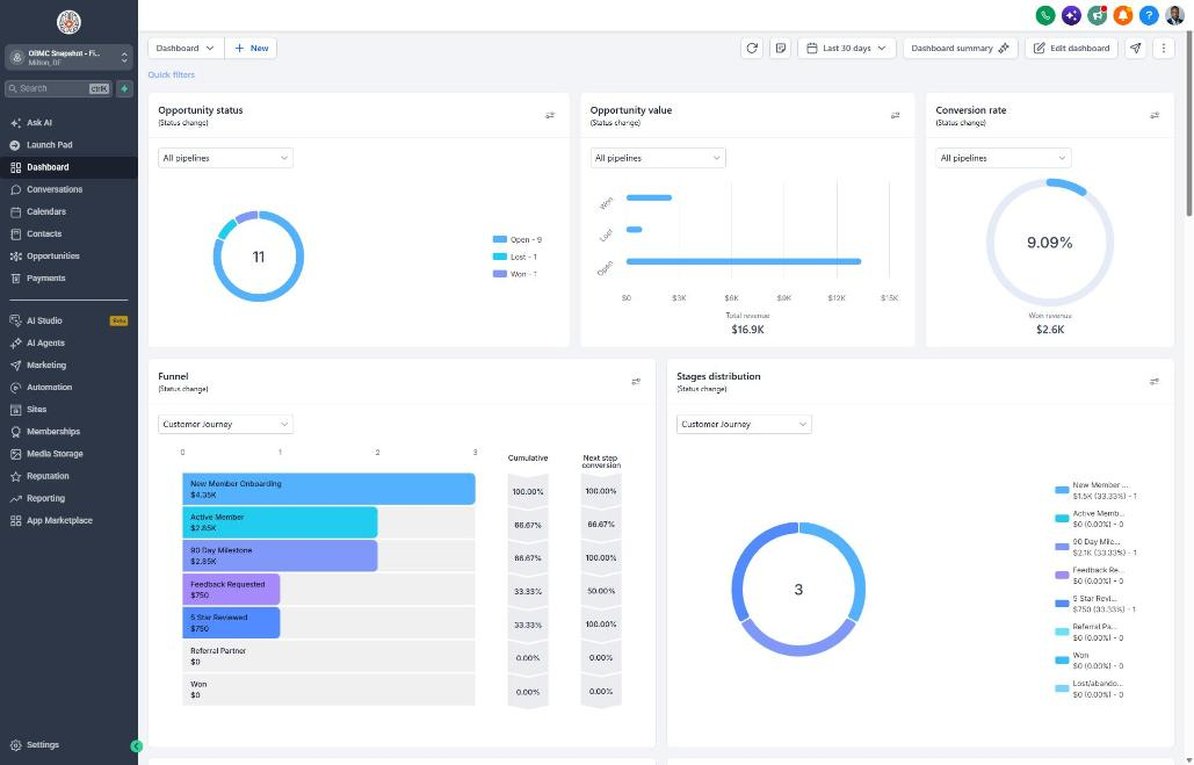
- Review the Dashboard monthly for trials started, trial-to-member conversion and win-backs.
- Test a new trial offer or intro format each quarter and compare conversion.
Launch your next fitness client this week
One-time $397. Includes the snapshot, both PDFs, the walkthrough and the mini-course. Or get all 20 niches for $1,997.