
Dental snapshot setup guide
Install, brand and launch the snapshot in about an hour. Follow the steps in order.
Setup checklist
Load the snapshot
In Agency view, go to Account Snapshots > Imported Snapshots and load the Dental snapshot into a new or existing sub-account. If your plan offers HIPAA features, enable them on the sub-account before importing any patients.
Fill in the business profile
Go to Settings > Business Profile and enter the practice name, address, phone, website and time zone. Reminders and campaigns send based on this time zone.
Set your custom values
Go to Settings > Custom Values and fill in Business Name, Owner Name, Business Phone, Service Area and the four links. Adjust the Lead Offer to your actual new patient special and confirm it meets your state board's advertising rules.
Connect a phone number and register A2P
Go to Settings > Phone Numbers, buy or port the office number, and complete A2P 10DLC registration in the Trust Center tab with the practice's legal name and EIN. Wait for approval before sending recall or campaign texts.
Connect email sending
Go to Settings > Email Services and add a dedicated sending domain, then add and verify the DNS records. This keeps recall and benefits emails out of spam.
Configure the new patient calendar
Go to Calendars > Calendar Settings and open "New Patient Visit." Set the appointment length and the times the practice reserves for new patients, add your cancellation policy and copy the booking link into the Booking Link custom value.
Review the pipelines
Go to Opportunities > Pipelines and confirm the New Patient Visit Booked, Exam Completed and Treatment Plan Presented stages. Use the estimated patient portion as the opportunity value and never put procedure names in deal titles.
Connect Google reviews
Go to Settings > Integrations and connect Google Business Profile, then copy the review link from Reputation > Settings into the Review Link custom value. When replying to reviews, never confirm someone is a patient.
Customize and embed the appointment form
Go to Sites > Forms > Builder and open "01 · Request a Quote / Booking Request." Keep the questions to contact, insurance basics and preferred time, add a consent-to-text checkbox and embed it on the website.
Import recall and unscheduled treatment lists
Export recall-due, unscheduled treatment and lapsed-patient reports from your practice management system. Import them in Contacts > Import, mapping Recall Interval, Next Service Due, Unscheduled Treatment Value and Insurance Carrier. Only import patients who agreed to receive texts.
Publish the workflows
Go to Automation > Workflows, review the copy with the office manager and publish. Start with 01, 02, 04, 05, 07 and 19. Schedule Workflow 21 for early October by tagging insured patients 'niche campaign'.
Go live test
Submit the appointment form with your own details, call the office line and let it ring out, and book a test new patient visit. Confirm the texts, emails and team alerts arrive and contain no health details, then delete the test contact.
Custom values: fill these once
All 21 workflows pull from these values, so your client's name, links and offers show up everywhere. Pre-filled dental defaults are shown; replace the business details.
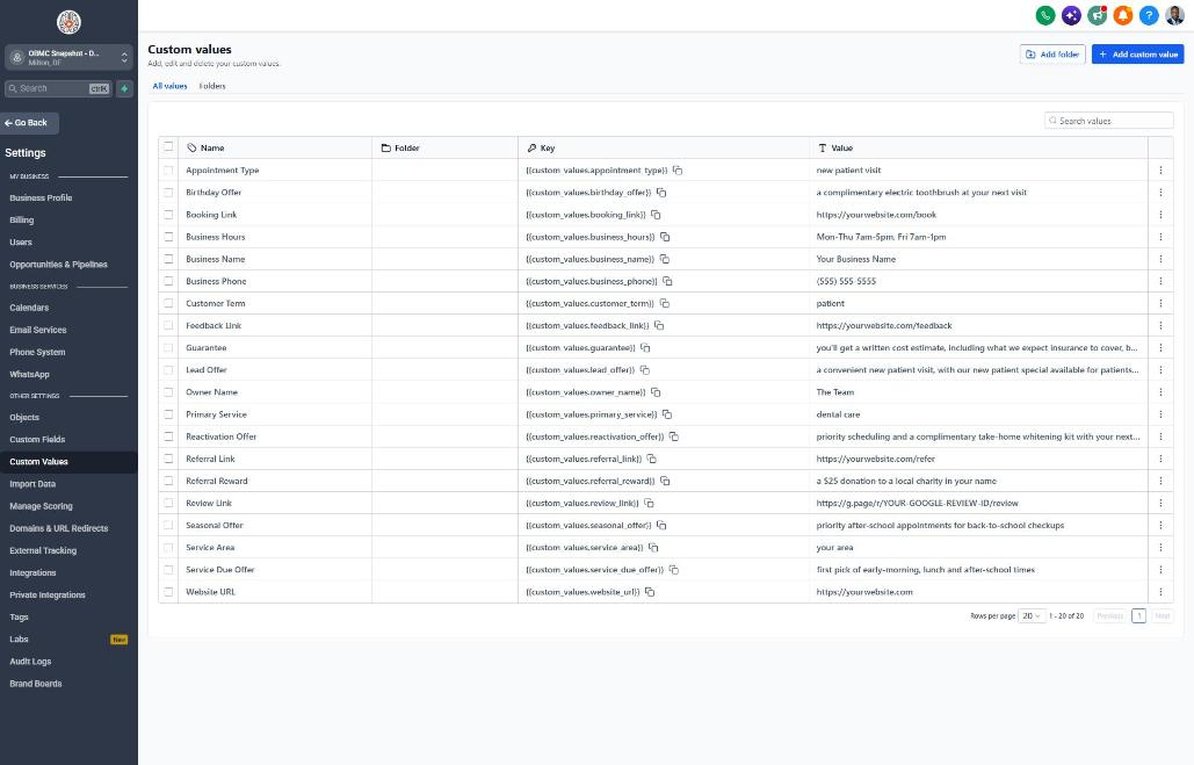
| Custom value | Dental default |
|---|---|
| Business Name | Your value |
| Business Phone | Your value |
| Owner Name | Your value |
| Website URL | Your value |
| Booking Link | Your value |
| Review Link | Your value |
| Feedback Link | Your value |
| Referral Link | Your value |
| Service Area | Your value |
| Customer Term | patient |
| Appointment Type | new patient visit |
| Primary Service | dental care |
| Lead Offer | a convenient new patient visit, with our new patient special available for patients without insurance |
| Guarantee | you'll get a written cost estimate, including what we expect insurance to cover, before any treatment begins |
| Referral Reward | a $25 donation to a local charity in your name |
| Reactivation Offer | priority scheduling and a complimentary take-home whitening kit with your next cleaning |
| Seasonal Offer | priority after-school appointments for back-to-school checkups |
| Service Due Offer | first pick of early-morning, lunch and after-school times |
| Birthday Offer | a complimentary electric toothbrush at your next visit |
| Business Hours | Mon-Thu 7am-5pm, Fri 7am-1pm |
KPIs to track every week
| Metric | Goal | Where in GoHighLevel |
|---|---|---|
| Speed to lead | Aim to respond to every new patient inquiry within 5 minutes during office hours | Conversations and contact activity |
| New patients booked | Grow new patient visits booked each month | Opportunities > Sales Pipeline, New Patient Visit Booked stage |
| Recall reappointment | Aim to reappoint most patients reminded by Workflow 19 within 30 days | Automation > Workflows > 19 stats and Calendars appointment list |
| Unscheduled treatment scheduled | Track the dollar value of treatment scheduled after Workflow 07 and grow it monthly | Opportunities > Sales Pipeline, Treatment Plan Presented to Won |
| Year-end benefits bookings | Fill the November and December schedule with hygiene and treatment from the Workflow 21 list | Automation > Workflows > 21 stats and Opportunities Won deals |
| Google reviews | Aim for steady new reviews each week | Reputation > Overview |
Campaign ideas for your client
- New patient special for self-pay patients (exam, X-rays and cleaning)
- In-house membership plan for patients without insurance
- Year-end benefits push for hygiene and unscheduled treatment
- Back-to-school family checkups with after-school times
- Complimentary take-home whitening for returning patients who reappoint
Compliance notes
- HIPAA: ask whether your GHL plan offers HIPAA features and a Business Associate Agreement, and enable them before importing patient data. Import only contact, scheduling and insurance-carrier data, never clinical notes, diagnoses or procedure codes.
- Never ask for or discuss health details by text. Keep reminders generic ('your cleaning and checkup', 'your treatment plan') and move clinical questions to a phone call or secure portal.
- Follow your state dental board's advertising rules for new patient specials, and check whether your insurance contracts limit discounts for insured patients. Avoid outcome claims and superlatives like 'painless' or 'best dentist'.
- Many state dental boards and anti-kickback rules restrict cash or gift rewards for patient referrals. The default referral reward is a charitable donation, so confirm it's allowed in your state before using Workflow 12.
- Register A2P 10DLC and get prior express written consent before sending marketing texts such as Workflows 20 and 21 under the TCPA. Appointment reminders should still honor STOP replies.
This is general guidance, not legal advice. Confirm the rules for your client's state and industry.