
🦷 GoHighLevel snapshot · Dental Practices
Dental snapshot mini-course
Six short visual lessons. Follow along in your own GoHighLevel account and you’ll be live by lesson 6.
Lesson 1
Install the Snapshot and Brand It for Your Practice
Lesson 2Answer Every New Patient Call and Inquiry
Lesson 3Book New Patient Visits and Reduce No-Shows
Lesson 4Get Unscheduled Treatment on the Schedule
Lesson 5Reviews, Referrals and Reactivating Lapsed Patients
Lesson 6Launch Recall and the Year-End Benefits Campaign
Lesson 1 of 6
Install the Snapshot and Brand It for Your Practice
Load the snapshot, enable privacy settings and make every message sound like the practice.
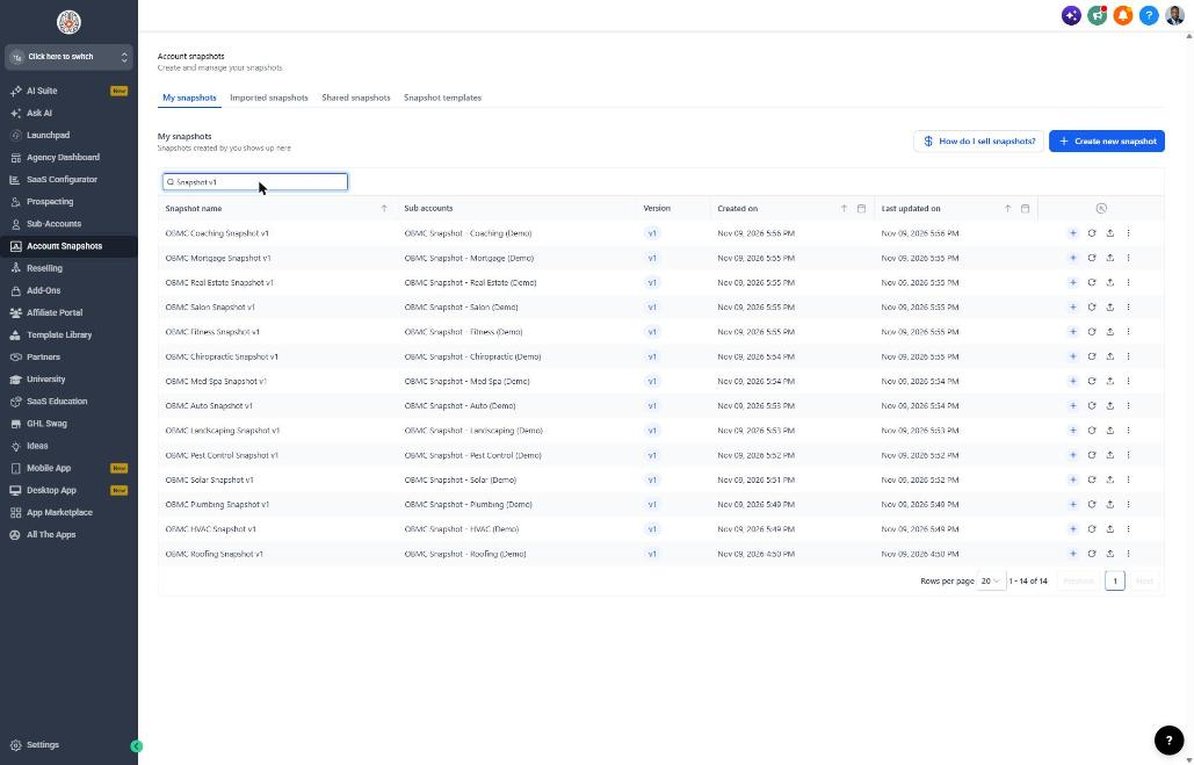
- Load the snapshot from Agency view > Account Snapshots > Imported Snapshots
- Enable HIPAA features on the sub-account if your plan offers them
- Fill in Settings > Business Profile and confirm the time zone
- Complete every value in Settings > Custom Values, including your new patient special
- Review the 7 dental fields in Settings > Custom Fields
Lesson 2 of 6
Answer Every New Patient Call and Inquiry
Make sure no new patient inquiry goes unanswered.
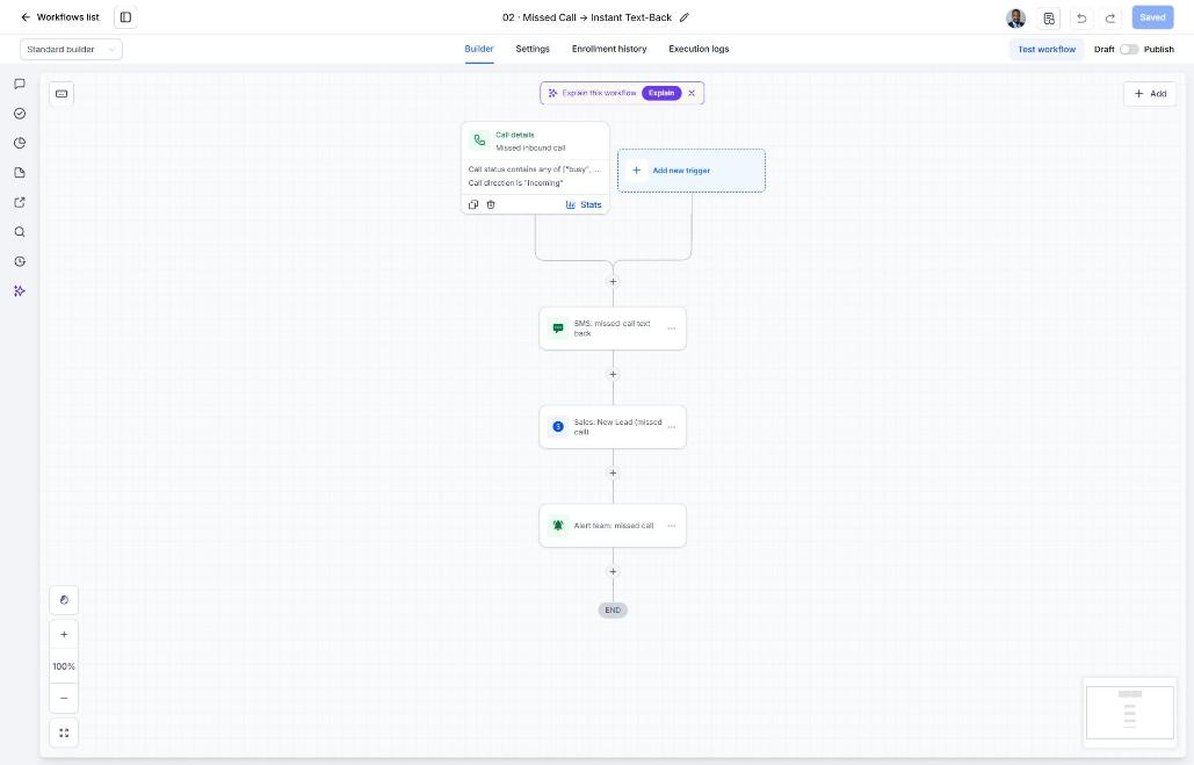
- Confirm the missed-call text-back in Automation > Workflows > 02 is published
- Open Sites > Forms > Builder and keep the form to contact, insurance and preferred time
- Add a consent-to-text checkbox and embed the form on the website
- Review the speed-to-lead copy in Workflow 01
- Test by calling the office line and submitting the form
Lesson 3 of 6
Book New Patient Visits and Reduce No-Shows
Fill new patient slots and protect chair time.
- Open Calendars > Calendar Settings > New Patient Visit
- Set appointment length and reserved new patient times
- Add your cancellation policy and copy the booking link into Settings > Custom Values
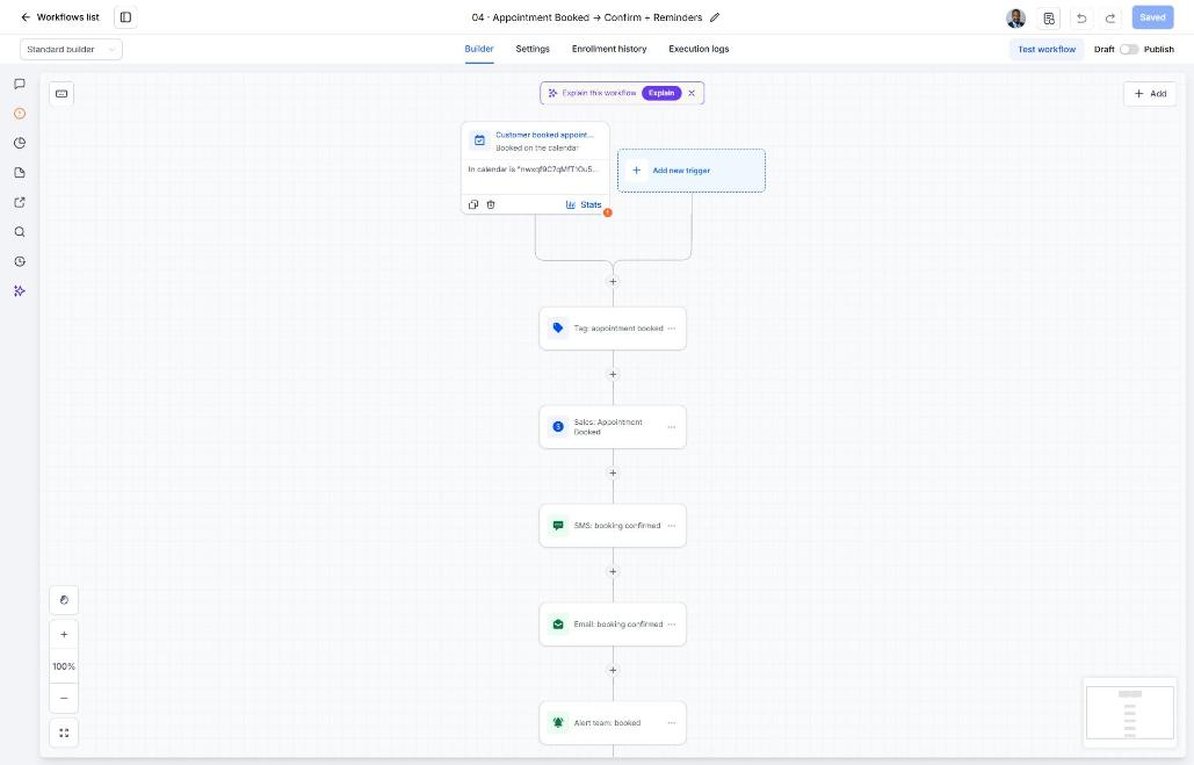
- Review confirmations and reminders in Automation > Workflows > 04
- Review the rebooking texts in Workflow 05
Lesson 4 of 6
Get Unscheduled Treatment on the Schedule
Follow up on every presented treatment plan without pressure.
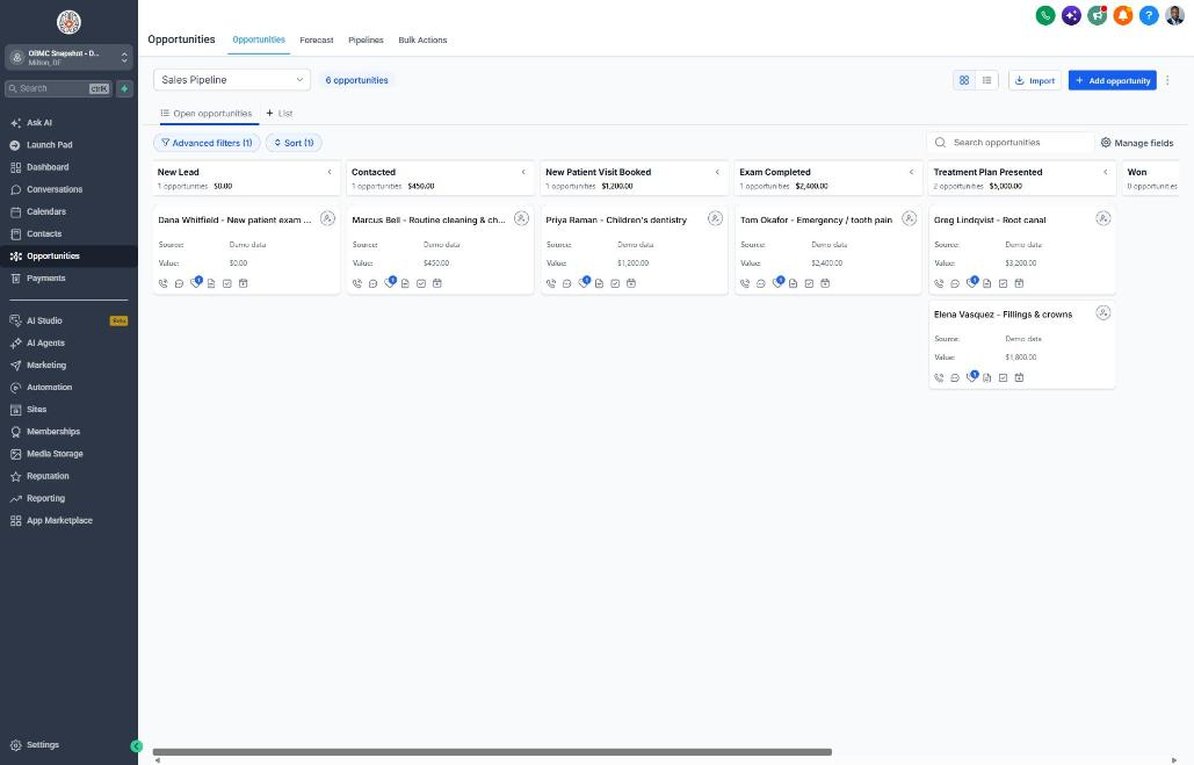
- Open Opportunities > Pipelines and review the New Patient Visit Booked to Won stages
- Import your unscheduled treatment report with Unscheduled Treatment Value
- Move patients with presented treatment to Treatment Plan Presented to start Workflow 07
- Route the Workflow 18 stale deal alert to the treatment coordinator
- Review unscheduled treatment in a weekly team huddle
Lesson 5 of 6
Reviews, Referrals and Reactivating Lapsed Patients
Grow reviews and referrals and bring lapsed patients back.
- Connect Google Business Profile in Settings > Integrations
- Copy the review link into Settings > Custom Values
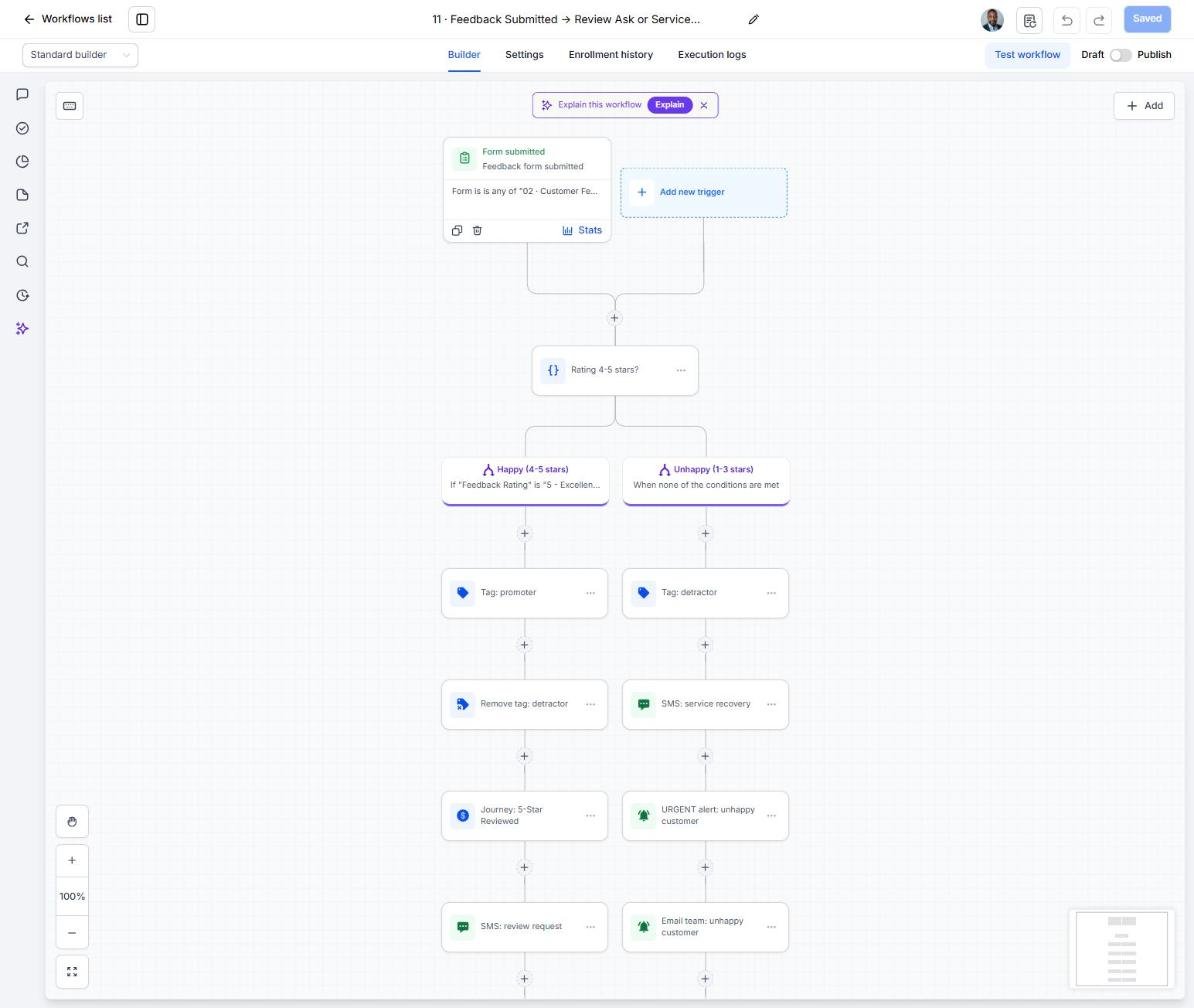
- Review the feedback split in Automation > Workflows > 11
- Confirm your state allows the referral thank-you before publishing Workflow 12
- Tag patients not seen in 18+ months 'start reactivation' to launch Workflow 14
Lesson 6 of 6
Launch Recall and the Year-End Benefits Campaign
Keep hygiene chairs full and fill the year-end schedule.
- Import your recall-due report and set Recall Interval and Next Service Due
- Tag recall-due patients 'service due' weekly to run Workflow 19
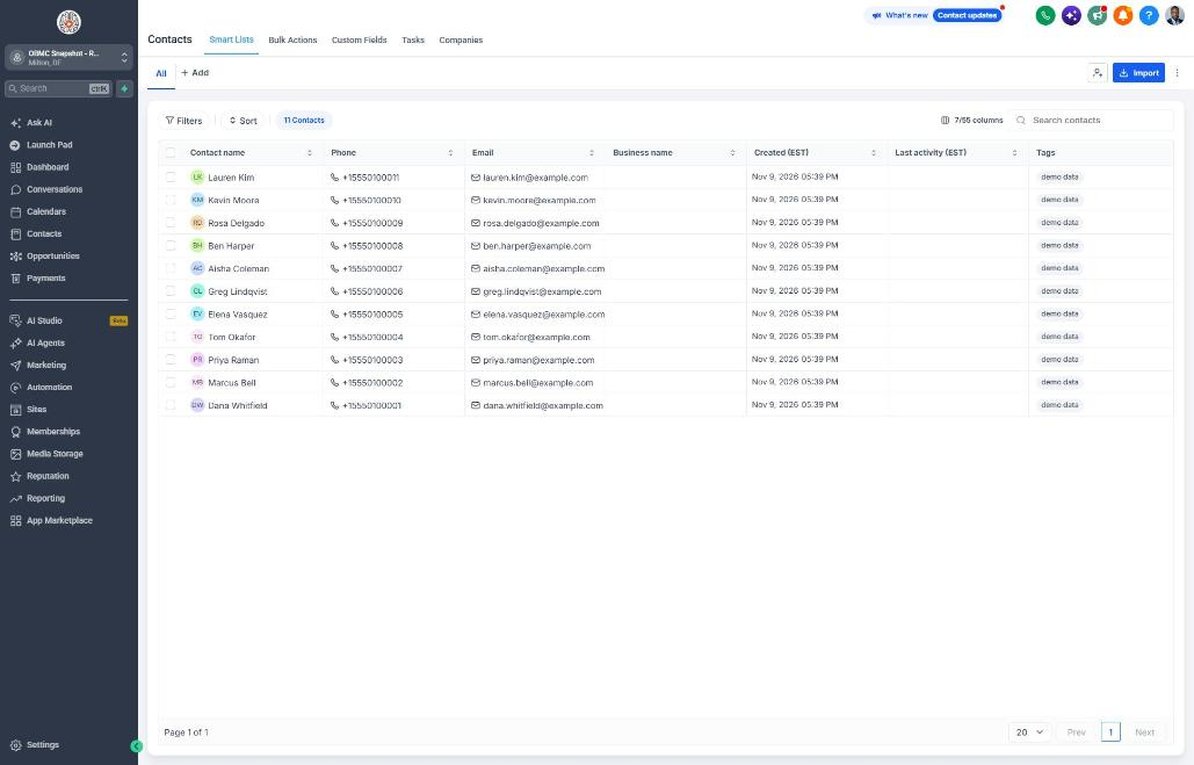
- In early October, filter Contacts by Has Dental Insurance = Yes and tag them 'niche campaign' to start Workflow 21
- Prioritize patients with an Unscheduled Treatment Value when calling replies from Conversations
- Review reappointment and year-end booking KPIs on the Dashboard weekly
Launch your next dental client this week
One-time $397. Includes the snapshot, both PDFs, the walkthrough and the mini-course. Or get all 20 niches for $1,997.