
Cleaning snapshot setup guide
Install, brand and launch the snapshot in about an hour. Follow the steps in order.
Setup checklist
Load the snapshot
In Agency view, go to Account Snapshots > Imported Snapshots and load the Cleaning snapshot into a new or existing sub-account. Open the sub-account when the import finishes.
Fill in the business profile
Go to Settings > Business Profile and enter the company name, address, phone, website and time zone. Message timing depends on the time zone, so confirm it.
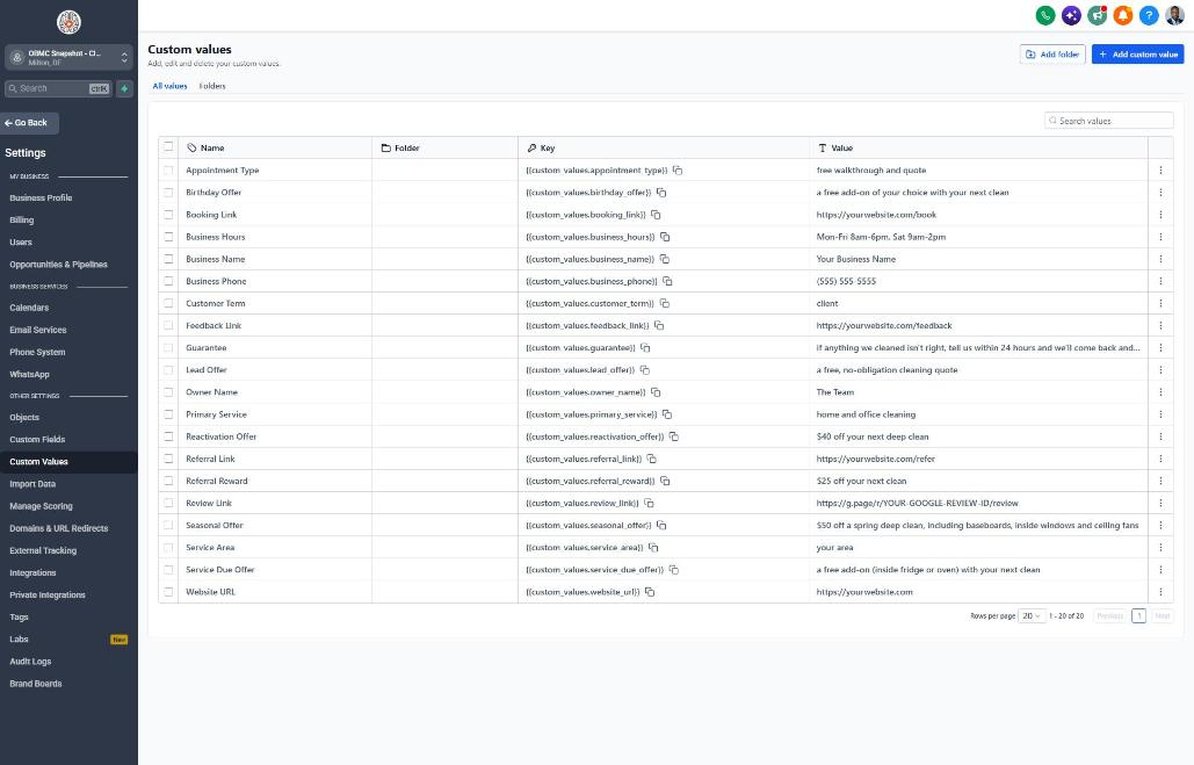
Set your custom values
Go to Settings > Custom Values and fill in Business Name, Owner Name, Business Phone, Service Area and all four links. Adjust the offers, especially Reactivation Offer and Seasonal Offer, to match real pricing.
Connect a phone number and register A2P
Go to Settings > Phone Numbers, buy or port a local number, and complete A2P 10DLC registration under the Trust Center tab with the company's legal name and EIN. Don't send campaigns until it's approved.
Connect email sending
Go to Settings > Email Services and add a dedicated sending domain. Add the DNS records at your domain host and verify so quotes and offers land in the inbox.
Configure the walkthrough calendar
Go to Calendars > Calendar Settings and open "Free Walkthrough & Quote." Assign the estimator, set availability, add drive-time buffers and paste the booking link into the Booking Link custom value.
Review the pipelines
Go to Opportunities > Pipelines and confirm the Walkthrough Booked, Walkthrough Done and Quote Sent stages. Add average recurring-client values so you can see pipeline revenue.
Connect Google reviews
Go to Settings > Integrations and connect Google Business Profile, then copy the review link from Reputation > Settings into the Review Link custom value.
Customize and embed the quote form
Go to Sites > Forms > Builder and open "01 · Request a Quote / Booking Request." Confirm Property Type, Bedrooms / Bathrooms and Cleaning Frequency are on it, then embed it on the website's booking page.
Import past and current clients
Go to Contacts > Import and upload clients who have agreed to receive texts. Map Last Service Date, Cleaning Frequency and Next Service Due, and tag active clients 'customer'.
Publish the workflows
Go to Automation > Workflows, review each workflow's copy and publish. Start with 01, 02, 04, 05, 10 and 11. Add a step to Workflow 10 or tag first-clean clients 'niche campaign' to start Workflow 21 after their first clean.
Go live test
Submit the quote form with your own details, call the business line and let it ring out, then book a test walkthrough. Confirm every text, email and team alert arrives, then delete the test contact.
Custom values: fill these once
All 21 workflows pull from these values, so your client's name, links and offers show up everywhere. Pre-filled cleaning defaults are shown; replace the business details.
| Custom value | Cleaning default |
|---|---|
| Business Name | Your value |
| Business Phone | Your value |
| Owner Name | Your value |
| Website URL | Your value |
| Booking Link | Your value |
| Review Link | Your value |
| Feedback Link | Your value |
| Referral Link | Your value |
| Service Area | Your value |
| Customer Term | client |
| Appointment Type | free walkthrough and quote |
| Primary Service | home and office cleaning |
| Lead Offer | a free, no-obligation cleaning quote |
| Guarantee | if anything we cleaned isn't right, tell us within 24 hours and we'll come back and re-clean it free |
| Referral Reward | $25 off your next clean |
| Reactivation Offer | $40 off your next deep clean |
| Seasonal Offer | $50 off a spring deep clean, including baseboards, inside windows and ceiling fans |
| Service Due Offer | a free add-on (inside fridge or oven) with your next clean |
| Birthday Offer | a free add-on of your choice with your next clean |
| Business Hours | Mon-Fri 8am-6pm, Sat 9am-2pm |
KPIs to track every week
| Metric | Goal | Where in GoHighLevel |
|---|---|---|
| Speed to lead | Aim to respond to every quote request within 5 minutes during business hours | Conversations and contact activity |
| Quote-to-booked rate | Track monthly and aim to improve it each quarter | Opportunities > Sales Pipeline, Quote Sent to Won |
| One-time to recurring conversion | Aim to convert a growing share of first cleans into recurring plans | Contacts filtered by Cleaning Frequency, plus Workflow 21 stats |
| Recurring client count | Grow active recurring clients every month | Opportunities > Customer Journey, Recurring Active stage |
| Google reviews | Aim for new reviews every week | Reputation > Overview |
| Schedule gaps recovered | Rebook missed walkthroughs and lapsed clients within the week | Workflow 05 and 19 enrollment stats in Automation > Workflows |
Campaign ideas for your client
- First-clean special: discounted first deep clean when you sign up for bi-weekly service
- Move-out clean bundle for real estate agents and property managers
- Spring or pre-holiday deep clean with baseboards, inside windows and fans included
- Refer-a-friend credit toward the next clean for both the client and the friend
- Commercial trial: one free week of nightly service added to a new 6-month office contract
Compliance notes
- Complete A2P 10DLC registration before texting. Describe your use case as quote follow-up, appointment reminders and promotional offers.
- Get written consent to text on your quote and booking forms. Marketing texts like the recurring plan and seasonal campaigns need prior express written consent under the TCPA.
- Send campaigns between 8am and 8pm in the client's local time and check for stricter state rules on texting hours and frequency.
- Keep entry codes and alarm details in the Entry Instructions field and limit who can see contacts in Settings > My Staff. Never send door codes back by text.
- Avoid claims like 'germ-free' or 'kills 99.9%' unless you can document them for the products you use.
This is general guidance, not legal advice. Confirm the rules for your client's state and industry.